Apple Pay has become a must-have checkout option for Shopify stores that want faster checkouts and fewer abandoned carts. Shoppers today expect to pay with one tap, without typing card details or filling out long forms, especially on mobile devices. That’s exactly where Apple Pay fits in. When it’s available, customers can complete their purchase in seconds using Face ID or Touch ID, which builds trust and reduces friction at checkout.
Recent industry data shows that nearly 1 out of every 2 iPhone users actively uses Apple Pay for online purchases, and mobile wallet payments continue to grow year over year. For Shopify merchants, this directly impacts conversion rates, especially in regions like the US, UK, Canada, Australia, and parts of Europe where Apple Pay adoption is already strong.
In this guide, we’ll walk through how to add Apple Pay to Shopify step by step, explain the exact requirements, and show you why Apple Pay sometimes doesn’t appear even after setup. Whether you’re running a standard Shopify store, Shopify Plus, a B2B setup, or selling subscriptions, this article helps you enable Apple Pay correctly and avoid common mistakes that cost sales.
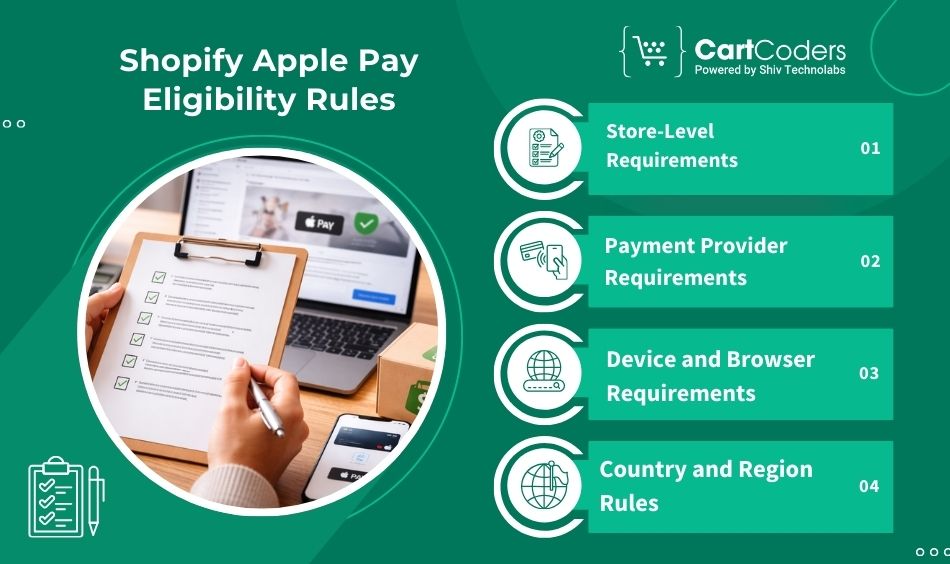
Shopify Apple Pay Eligibility Rules (Read Before Setup)
Before turning on Apple Pay in Shopify, it’s important to understand the eligibility rules. Many setup issues happen because one small requirement is missed. Apple Pay works only when store settings, payment provider, customer device, and region rules all align.
Store-Level Requirements
Your Shopify store must meet these basic conditions:
Checkout must be active and publicly accessible
At least one credit or debit card payment method must remain enabled
Apple Pay cannot be used as the only payment option
The store must not be in password-protected or paused mode
If card payments are disabled, Apple Pay will not show, even if it’s turned on in settings.
Payment Provider Requirements
Apple Pay does not work on its own. It runs through your card payment provider.
Shopify Payments supports Apple Pay by default in eligible countries
Not all gateways that claim Apple Pay support work correctly with the Shopify checkout
If Apple Pay does not appear in your payment settings, the provider is usually the limiting factor.
Country and Region Rules (Important for Global Stores)
Apple Pay availability depends on two things:
Your store’s country (based on Shopify Payments availability)
Your customer’s country (where Apple Pay is supported on Apple devices)
For example:
Apple Pay is widely used in the US, UK, Canada, Australia, and most of Europe
Customers from unsupported regions will not see Apple Pay, even if your store supports it
This behavior is expected and does not indicate a setup issue.
Device and Browser Requirements
Apple Pay is shown only when customers meet all device conditions:
Apple device (iPhone, iPad, or Mac)
Apple Pay is set up in the Wallet app
Supported browser (usually Safari)
If any of these conditions fail, Shopify automatically hides the Apple Pay button.
Understanding these eligibility rules upfront helps avoid confusion during setup and testing, and it makes the next steps much easier to follow.
Step-by-Step: How to Add Apple Pay to Shopify (Admin Setup)
Once the eligibility and device conditions are clear, enabling Apple Pay in Shopify takes only a few minutes. The steps below apply to most stores using Shopify Payments or a supported card payment provider.
Step 1 – Open Payment Settings in Shopify Admin
Log in to your Shopify admin panel and follow this path: Settings → Payments
This section controls all payment methods available at checkout, including cards and wallet-based options like Apple Pay.
Step 2 – Open Your Card Payment Provider
Under the Card payments section, locate your active payment provider.
For most stores, this will be Shopify Payments
Click Manage to access detailed settings
Apple Pay is controlled from inside your card payment provider, not as a separate option.
Step 3 – Turn On Apple Pay Under Wallets
Inside the payment provider settings:
Scroll to the Wallets section
Find Apple Pay
Turn it on and save your changes
If Apple Pay is missing here, it usually means your provider or store country does not support it.
Step 4 – Save and Confirm Apple Pay Status
After saving:
Apple Pay should appear as an active wallet under your card payment methods
Make sure at least one card type (credit or debit) remains enabled
Do not disable cards after turning on Apple Pay
At this stage, Apple Pay is technically active. If you don’t see it on the storefront yet, that’s normal. Visibility depends on device, browser, customer setup, and theme behavior.
Where Apple Pay Buttons Appear in a Shopify Store
After Apple Pay is enabled in the Shopify admin, many store owners expect the button to show everywhere immediately. In reality, Apple Pay appears only in specific locations, and only when Shopify detects an eligible customer and device. Knowing where Apple Pay should appear helps you confirm whether the setup is working correctly.
Apple Pay on the Product Page
On product pages, Apple Pay may appear as a dynamic checkout button. This depends on:
Your theme’s product page settings
Whether dynamic checkout buttons are enabled
The customer’s device and browser
If Apple Pay is available, it usually shows near the “Buy Now” or add-to-cart area. Some themes hide wallet buttons by default, so Apple Pay may still be active even if it’s not visible here.
Apple Pay on the Cart Page
The cart page is one of the most common places for Apple Pay to appear.
Apple Pay may show as a button above or below the checkout button
Cart layout matters; cart pages and cart drawers behave differently
Custom cart logic can block wallet buttons unintentionally
If your store uses a slide-out cart drawer, Apple Pay may not appear unless the theme explicitly supports wallet buttons there.
Apple Pay on the Checkout Page
The checkout page is where Apple Pay is most reliable.
Apple Pay appears as part of the accelerated checkout options
It may appear alongside other wallets like Shop Pay
Shopify decides visibility based on customer eligibility in real time
If Apple Pay shows on checkout but not on product or cart pages, your setup is still correct.
Why Apple Pay Appears for Some Users Only
Apple Pay visibility is customer-specific, not store-wide.
One customer may see Apple Pay
Another may not, even in the same store
This happens because Shopify checks device type, browser, Apple Wallet setup, and region before showing the button. This selective behavior is expected and does not indicate a setup problem.
Devices, Browsers, and Customer Conditions for Apple Pay on Shopify
One of the most common reasons merchants think Apple Pay is “not working” is that they test it in the wrong environment. Apple Pay on Shopify is strictly device- and browser-dependent, and Shopify hides the option automatically when conditions are not met.
Supported Apple Devices
Apple Pay works only on Apple hardware where Apple Wallet is available and active:
iPhone
iPad
Mac (with Touch ID or an iPhone paired for approval)
If a customer is shopping from an Android, Windows, or Linux device, Apple Pay will never appear, and that is expected behavior.
Supported Browsers
Browser choice plays a big role in Apple Pay visibility:
Apple Pay works best on Safari
On Mac, Safari is required in most cases
Other browsers may hide Apple Pay even on Apple devices
This is why Apple Pay often appears on mobile but not during desktop testing.
Customer-Side Requirements
Even if your store setup is perfect, Apple Pay shows only when the customer:
Has Apple Pay set up in their Wallet app
Has an eligible card added to Apple Wallet
Is shopping from a supported country
Is not blocked by private browsing or restrictive browser settings
If any of these conditions fail, Shopify quietly removes the Apple Pay button instead of showing an error.
Why Merchants Miss Apple Pay During Testing
Most failed tests happen because:
Testing is done on a non-Apple device
Testing is done in an unsupported browser
Apple Pay is not set up on the test device
The test customer is from an unsupported region
Once these conditions are clear, Apple Pay behavior becomes predictable and easier to validate before moving into the actual setup steps.
How to Test Apple Pay on Shopify the Right Way?
Testing Apple Pay incorrectly is one of the biggest reasons merchants assume it’s broken. Since Apple Pay depends on the device, browser, and customer setup, testing must follow the same conditions a real customer would use.
Use the Right Device and Browser
To test Apple Pay properly:
Use an iPhone, iPad, or Mac
Open the store in Safari
Make sure Apple Pay is already set up in the Apple Wallet
Add a valid card to Apple Wallet
Testing on Chrome, Windows, or Android devices will always fail, even if Apple Pay is enabled correctly.
Test with a Real Checkout Flow
Apple Pay does not appear on empty carts or restricted products.
Add a physical product to the cart
Proceed to cart or checkout
Confirm Apple Pay appears as a checkout option
If your store has shipping rules, tax settings, or address restrictions, those must be valid for Apple Pay to show.
Test Using a Duplicate Theme
To avoid affecting live customers:
Duplicate your active theme
Test Apple Pay in the copied theme
Keep checkout settings unchanged
This helps confirm whether Apple Pay visibility issues are theme-related without risking checkout disruptions.
Common Testing Mistakes to Avoid
Many false errors come from:
Testing in private or incognito mode
Testing with Apple Pay is not configured on the device
Testing from unsupported regions
Testing only on desktop without Safari
Once testing is done correctly, Apple Pay behavior becomes consistent and predictable. If the button still doesn’t appear after this step, the issue usually lies in the theme logic, payment provider rules, or regional limitations.
Apple Pay Not Showing on Shopify? Common Issues and Fixes
If Apple Pay is enabled but still doesn’t appear on your store, the issue is usually not with Shopify itself. In most cases, it’s caused by theme behavior, payment settings, or customer conditions. Below are the most common problems Shopify merchants face, and how to fix them.
Apple Pay Is Enabled, but the Button Is Not Visible
This is the most reported issue.
The store is being tested on an unsupported device or browser
Dynamic checkout buttons are disabled in the theme
The cart drawer or custom cart layout does not support wallet buttons
What to check:
Open your theme settings and confirm that dynamic checkout buttons are enabled on product and cart pages. If you’re using a custom theme or a heavily modified cart, wallet buttons may be hidden by design.
Apple Pay Option Is Missing in Payment Settings
If you don’t see Apple Pay under wallets at all:
Your payment provider may not support Apple Pay on Shopify
Shopify Payments may not be available in your store’s country
Card payments are not fully activated
What to check:
Confirm that Shopify Payments is active (or that your third-party gateway supports Apple Pay on web) and that at least one card payment method is enabled.
Apple Pay Shows for Some Customers but Not Others
This is expected behavior.
Apple Pay appears only for customers using Apple devices
The customer must have Apple Pay set up in their Wallet
The customer must be located in a supported country
What to check:
Test with multiple devices and locations. Apple Pay visibility is customer-specific, not global.
Apple Pay Appears, but Payments Fail
In some cases, customers can see Apple Pay, but the transaction does not complete.
Payment provider configuration issues
Address or shipping rule conflicts
Currency or region mismatch
What to check:
Review failed order logs in Shopify and confirm that your payment provider supports Apple Pay for your selling regions and currencies.
Once these issues are resolved, Apple Pay usually starts appearing consistently across eligible devices. If problems continue even after these checks, the store often needs a deeper review of checkout logic, theme code, or payment provider settings.
Apple Pay for Shopify Plus and B2B Stores
Apple Pay works well for most standard Shopify stores, but its behavior changes when you’re running Shopify Plus or a B2B setup. These cases need extra attention because checkout logic, buyer flows, and payment visibility can differ from regular stores.
Apple Pay on Shopify Plus
On Shopify Plus, Apple Pay can be enabled the same way as any other store, but custom checkout logic can affect whether the button appears.
Key things to keep in mind:
Apple Pay follows Shopify’s accelerated checkout rules
Custom checkout extensions or scripts can hide wallet buttons
Changes made to checkout UI may override the default wallet placement
If your Plus store uses a customized checkout, Apple Pay may be active but not visible until wallet support is added back into the checkout layout.
Apple Pay in Headless or Custom Frontends
For Shopify Plus stores using a headless setup:
Apple Pay support depends on how checkout is handled
Standard Shopify checkout supports Apple Pay automatically
Fully custom checkout flows may require additional configuration
In these cases, Apple Pay behavior is not controlled only by the Shopify admin.
Apple Pay for Shopify B2B Stores
Apple Pay behaves differently in B2B environments.
Apple Pay can be enabled at the store level
Accelerated checkout options are limited for B2B buyers
Many B2B customers will not see Apple Pay at checkout
This is expected and does not indicate a setup problem. B2B checkouts often rely on invoice-based or negotiated payment terms, where wallet payments are not always available.
What B2B Merchants Should Expect
For B2B-focused stores:
Apple Pay may appear for DTC customers, but not B2B buyers
Visibility depends on checkout type, not just payment settings
Apple Pay works best when mixed B2B + DTC models are clearly separated
Understanding these limitations upfront helps avoid confusion and unnecessary troubleshooting.
Apple Pay for Subscriptions and Recurring Orders on Shopify
Apple Pay is not limited to one-time purchases. It also works with subscriptions and recurring billing on Shopify, but only when certain conditions are met. This is an area where many stores get confused, especially after enabling Apple Pay and seeing mixed results.
How Apple Pay Works with Subscriptions
When a customer uses Apple Pay for a subscription:
The initial checkout is approved using Face ID or Touch ID
Future recurring charges are handled automatically by the payment provider
Customers do not need to re-approve each billing cycle
From the shopper’s side, the experience feels simple and familiar, which helps reduce drop-offs during subscription signups.
Requirements for Apple Pay Subscription Payments
For Apple Pay to work with subscriptions:
Your store must use Shopify Payments or a supported gateway
The subscription app must support Apple Pay
The selling currency and the customer country must be supported
Card payments must remain active alongside Apple Pay
If any of these conditions are missing, Apple Pay may still show for one-time purchases but not for subscription products.
Why Apple Pay May Not Show on Subscription Checkout
Common reasons include:
The subscription app does not support Apple Pay
The checkout flow is customized in a way that hides wallet buttons
The customer’s region does not support Apple Pay for recurring charges
This often leads merchants to think Apple Pay is “partially broken,” when in fact it’s working as designed.
What Merchants Should Check Before Going Live
Before promoting Apple Pay for subscriptions:
Test a full subscription checkout on a real Apple device
Confirm the recurring charges process is correct after the first payment
Check order and payment logs in Shopify admin
When set up correctly, Apple Pay can make subscription signups faster and more reliable, especially on mobile.
Need Help Setting Up Apple Pay Without Checkout Issues?
Setting up Apple Pay looks simple, but in real stores, it often breaks because of theme customizations, cart logic, subscription apps, or region-based payment rules. That’s where CartCoders, a trusted Shopify development company, steps in.
We help Shopify merchants:
Review Apple Pay eligibility across countries and currencies
Fix Apple Pay buttons missing on product, cart, or checkout pages
Resolve conflicts caused by custom themes, cart drawers, and apps
Validate Apple Pay for Shopify Plus, B2B, and subscription checkouts
Test real checkout flows without affecting live customers
Whether you’re launching Apple Pay for the first time or fixing a setup that isn’t converting, our Shopify experts make sure it works the way customers expect, fast, secure, and reliable.
Conclusion
Adding Apple Pay to Shopify is one of the simplest ways to reduce checkout friction when it’s done correctly. The setup itself takes only a few minutes, but visibility and performance depend on meeting the right conditions.
Before going live, make sure you’ve checked the essentials:
Apple Pay is enabled under your card payment provider
At least one credit or debit card method remains active
Testing is done on a real Apple device using a supported browser
Theme and cart layouts allow wallet buttons to appear
Regional and customer eligibility rules are understood
Apple Pay is not meant to show for every visitor, and that’s normal. When it appears for the right customers, it shortens checkout time and improves purchase completion, especially on mobile.
If Apple Pay doesn’t show or behaves inconsistently, the issue is usually tied to theme logic, payment configuration, or region-specific rules. Fixing those early helps avoid lost sales and customer confusion.
Once everything is validated, Apple Pay becomes a reliable checkout option that works quietly in the background, letting customers pay faster while your store captures more completed orders.
Frequently Asked Questions
1. Can I add Apple Pay to Shopify?
Yes. You can add Apple Pay to Shopify if your store uses a supported card payment provider, most commonly Shopify Payments, and at least one card payment method is active.
2. How do I enable Apple Pay on Shopify?
Go to Settings → Payments → Card payment provider → Wallets, turn on Apple Pay, and save. Apple Pay is managed inside your card payment provider, not as a separate payment method.
3. Why is Apple Pay not showing on my Shopify store?
Apple Pay shows only when all conditions are met. The most common reasons it doesn’t appear are: – The customer is not using an Apple device – The browser does not support Apple Pay – Apple Pay is not set up in the customer’s Wallet – The theme or cart layout hides wallet buttons
4. Can Apple Pay be the only payment method on Shopify?
No. Shopify requires at least one credit or debit card payment method to remain active. Apple Pay cannot be used as a standalone checkout option.
5. Does Apple Pay work without Shopify Payments?
Yes, but only if your third-party payment gateway supports Apple Pay on the web and is compatible with Shopify checkout. Many gateways claim support but do not fully support Apple Pay visibility.
6. Which countries support Apple Pay on Shopify?
Apple Pay availability depends on: – Your store’s country (based on Shopify Payments support) – Your customer’s country (Apple Pay availability) It is widely supported in regions like the US, UK, Canada, Australia, and most of Europe, but not all countries are eligible.
7. Why does Apple Pay show for some customers but not others?
Apple Pay visibility is customer-specific. Shopify checks the customer’s: – Device type – Browser – Apple Wallet setup – Location If any requirement fails, Shopify hides the Apple Pay button automatically.
8. Does Apple Pay work on Shopify Plus?
Yes. Apple Pay works on Shopify Plus, but custom checkout logic or checkout extensions can affect where the button appears. Apple Pay may be active but hidden due to customization.
9. Does Apple Pay work for Shopify B2B stores?
Apple Pay can be enabled at the store level, but accelerated checkout options are limited for B2B buyers. Many B2B customers will not see Apple Pay during checkout, which is expected behavior.
10. Can customers use Apple Pay for subscription products?
Yes. Apple Pay supports subscriptions when: – Shopify Payments (or a supported gateway) is used – The subscription app supports Apple Pay – The customer and region are eligible Recurring charges are processed automatically after the first payment.
11. Is Apple Pay safe for Shopify stores?
Yes. Apple Pay uses device-level authentication and tokenized payment data. Actual card numbers are not shared with the store, which adds an extra layer of payment security.
12. Why did Apple Pay disappear after a theme update?
Theme updates can reset or change: – Dynamic checkout button settings – Cart layouts or cart drawer behavior – Custom code that controls wallet visibility After a theme update, Apple Pay should always be re-tested on a real Apple device.
13. Does Apple Pay affect checkout speed on Shopify?
Yes. Apple Pay reduces checkout time by removing manual form-filling. Customers confirm payments using Face ID or Touch ID, which often leads to faster order completion, especially on mobile.
14. Do refunds work normally for Apple Pay orders?
Yes. Refunds for Apple Pay orders are handled directly from Shopify admin, just like regular card payments. Customers receive refunds back to the original payment method.
As the CTO at Shiv Technolabs & CartCoders, I am liable for instigating, planning, integrating, and implementing the organization's strategic orientation.
I gather the most significant tech news in addition to sharing the information I gained while serving as the CTO of Shiv Technolabs, a renowned web and mobile app development company. I am pleased to answer questions as a most valuable expert for Shiv Technolabs Private Limited and to share my experience. I offer a keen insider's perspective on technical advancements.
 eCommerce
Solution
eCommerce
Solution









 INDIA
INDIA


 USA
USA
 CANADA
 AUSTRALIA