
These powerful analytics tools are necessary for gaining insights about your customers, whether you have been in e-commerce for a long period or just started.
This will help you make better decisions, and to keep up the momentum in this fast-growing industry, you need to increase visitors on your eCommerce website.
However, adding Google Search Console to your Shopify store is an important strategy for improving your website’s SEO. This increases brand awareness for your store and, hence, more MQLs.
Don’t be worried if you still need to add Google Search Console as it is now! This post will discuss what Google Search Console is, why it is important, and how to add the tool into your Shopify website.
Let’s get started!
What is Google Search Console?
Google Search Console is a free Google-provided SEO tool for website operators. It offers insight into how their sites appear in the Google Search Results. Nonetheless, it does not guarantee that your site will show up in search results, but it is useful to enhance your web page rank and visibility.
- View your website’s ranking on different keywords
- Find technical problems that prevent pages from being indexed by Google
- See how well your webpage ranks in organic search results including clicks and impressions.
- Instructing Google of crawling either sitemap or individual URLs
With the help of Search Console, you can optimize your site for search engines and draw more organic traffic.
Importance of Adding Google Search Console to Shopify Store
People with websites should know that Google Search Console is important for enhancing search engine optimization (SEO) and improving online presence. It’s so because:
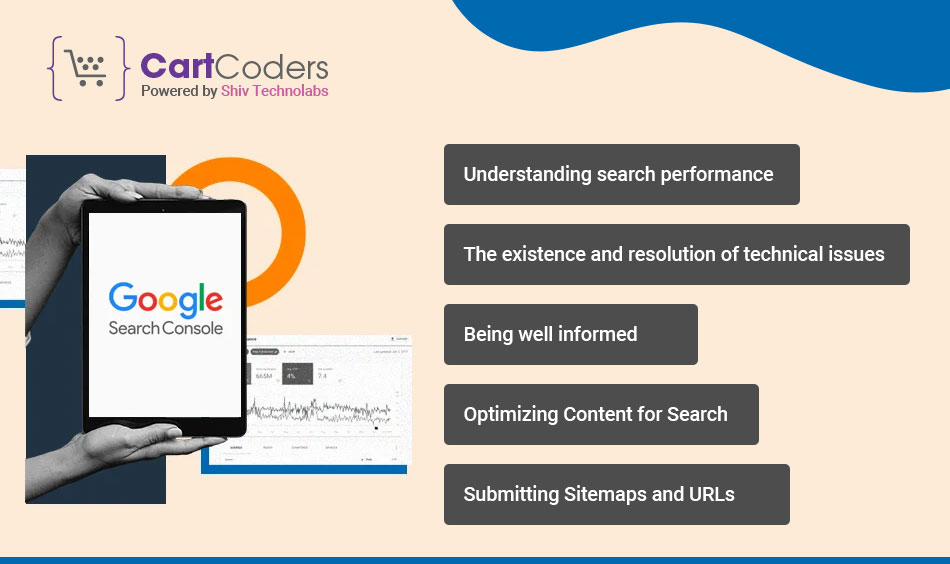
Understanding Search Performance
With the help of the Search Console, you can get invaluable information on how users reach your site through searching. For example, you can track keywords triggering your site to show up in search results, clicks, impressions, and average ranking. This will let you know which content interests them most and adjust your website accordingly to attract more relevant visitors.
The Existence and Resolution of Technical Issues
Google Search Console can identify common problems that may be preventing the site from being properly indexed. These could include broken links, slow web pages, and a need for mobile compatibility. By doing this, you can ensure an optimized crawl budget for Google, giving the website a better chance to rank higher on the search engine results page.
Being Well Informed
You will be updated on any issues Google has encountered when trying to access your website through Search Console. Notifications about malware, security vulnerabilities, or indexing faults are sent out here. This enables you to take preventative action to keep your website healthy and SEO-friendly.
Optimizing Content for Search
With Search Console, you can recognize chances of enhancing your content so that it is more suitable for the relevant keywords. For instance, we will look at what terms have a lot of clicks but a very low rate of clicks, implying that there might be an error in the title or description of the content.
Submitting Sitemaps and URLs
A sitemap is a file containing all your website’s pages. This tool allows you to submit a whole site map as well as individual URLs for Google crawling. Google will display all the information about your website’s contents and may consider it when displaying search results.
How to Add Google Search Console to Your Shopify Store?
Google Search Console helps you understand how your Shopify store appears in Google search results. It shows which pages are indexed, what keywords bring traffic, and where technical SEO issues block visibility.
Connecting it early gives you better control over indexing, rankings, and long-term organic growth.
Step 1) Choose the Right Property Type in Google Search Console
Open Google Search Console → Add property
Pick one:
- Domain property (recommended): tracks all versions (http/https, www/non-www, subdomains). Requires DNS TXT record verification.
- URL prefix property (easier): tracks only the exact URL you enter (example: https://www.yourstore.com/). Supports HTML tag verification (best for Shopify).
Step 2) Verify Ownership (2 best options for Shopify)
Option A (Recommended for Shopify): URL Prefix + HTML tag verification
In GSC, choose URL prefix and enter your store URL with https:// (and the correct version: www or non-www).
Select HTML tag and copy the <meta …> tag Google gives.
In Shopify Admin:
- Online Store → Themes → (current theme) → Edit code
- Open layout/theme.liquid
- Paste the meta tag inside <head> (usually near the top)
Save → go back to GSC → click Verify.
Tip: Don’t paste it into a random section block—put it in theme.liquid so it loads site-wide.
Option B: Domain property + DNS TXT record (best tracking coverage)
- In GSC, choose Domain
- Copy the TXT record Google provides
- Add it in your domain provider DNS (GoDaddy/Namecheap/Cloudflare, etc.)
- Go back to GSC and click Verify (DNS can take a bit to propagate).
Step 3) Submit your Shopify Sitemap to Google
Shopify automatically generates your sitemap at:
https://yourdomain.com/sitemap.xml
To submit it:
- In GSC, open your verified property
- Go to Sitemaps
- Enter sitemap.xml and click Submit
Step 4) Request Indexing for Key Pages (Optional But Useful)
- In GSC, use the top URL Inspection bar
- Paste a page URL (homepage, collection, important product)
- Click Request indexing
Step 5) Quick Checks After Setup (So you Know it’s Working)
- Coverage / Indexing will take time to populate after sitemap submission (normal delay).
- Make sure you verified the same version you use publicly (www vs non-www, https). (URL Prefix is strict.)
Best Ways to Use Google Search Console for Shopify
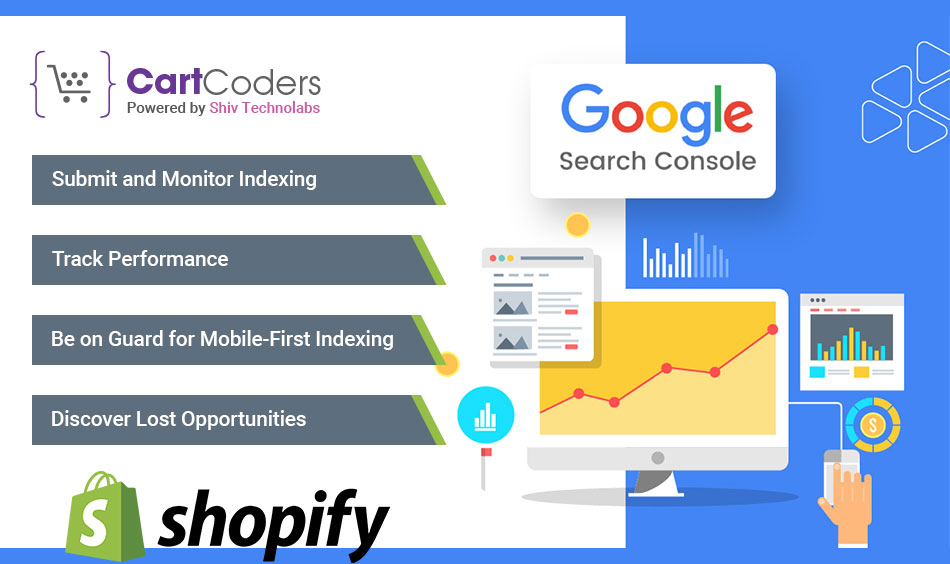
What do you want to happen when you finish adding Google Search Console to your Shopify website? Let us look at how you can use GSC to take full advantage of the potentiality held within your business. Read on:
- Submit and Monitor Indexing: Ensure that Google indexes your product pages and collections. In GSC, submit your sitemap (usually at [invalid URL removed]) and check for indexing errors. Correct any crawling errors for improved search engine visibility.
- Track Performance: Find out how your products rank for relevant keywords. “Performance” on GCS displays clicks, impressions, and the average ranking position of searches on it. Note the high impression-low click rate pages to enhance their title tags and meta descriptions for greater conversions.
- Be on Guard for Mobile-First Indexing: Google prioritizes indexing the mobile versions of websites over desktop versions. Leverage GSC to monitor crawl errors specific to mobile and ensure that your store is well-optimized for it.
- Discover Lost Opportunities: The “Coverage” report from GSC reveals pages with indexing problems. You could, however, have unknowingly blocked key pages from being picked up by search engines via robots.txt file. Use GSC to identify and resolve such issues so that all your products are discoverable online.
Why Shopify Brands Choose CartCoders?
At CartCoders, we don’t just help you add Google Search Console—we help you use it the right way.
Our Shopify specialists handle:
- Correct Search Console property selection (Domain vs URL prefix)
- Clean verification without breaking themes or tracking
- Shopify sitemap validation and indexing fixes
- Diagnosis of indexing drops, crawl errors, and coverage issues
- Search Console–driven SEO improvements tied to real store data
Whether you’re launching a new Shopify store, scaling collections, or fixing visibility drops, our team aligns Search Console insights with technical Shopify improvements—not generic SEO advice.
If you want Google Search Console set up correctly from day one and translated into measurable Shopify growth, CartCoders is built for that job.
Conclusion
Adding Google Search Console to your Shopify store is a foundational SEO step, not an optional task. Once connected, you gain direct visibility into how Google indexes your products, collections, and pages—along with early signals for crawl errors, indexing gaps, and keyword performance.
When set up correctly with the right property type, proper verification, and sitemap submission, Search Console becomes your long-term monitoring layer for organic growth. It helps you catch issues before rankings drop and gives you data-backed direction for content, technical fixes, and store expansion as your Shopify business scales.
Frequently Asked Questions
If you want the cleanest tracking across www/non-www + subdomains, choose Domain property (DNS verification). If you want the quickest Shopify setup, choose URL prefix and verify using the HTML meta tag in theme.liquid. Google treats different URL versions separately for URL prefix, so you must pick the exact live version you use.
Use the exact version customers see in the browser, usually:
– https://yourdomain.com/ or
– https://www.yourdomain.com/
For URL prefix, protocol and subdomain matter, so adding the wrong version can cause missing data or verification confusion.
Paste it in: Online Store → Themes → Edit code → Layout → theme.liquid
Inside the <head> section (before </head>). This loads the tag site-wide and is the standard Shopify approach.
Most common reasons:
– You pasted the tag in the wrong file (not theme.liquid) or outside <head>.
– You edited a different theme than the published/live theme.
– The page is cached—Google may need a short delay before the tag is visible.
Shopify also notes verification may not be immediate; retry after a short wait.
Yes. If you have multiple properties (or international domains), Shopify supports adding each meta tag on a separate line in the same theme.liquid file.
In some Shopify setups, a conflicting verification tag (manual vs auto) can cause issues. A practical fix discussed in Shopify support threads is to remove the duplicate manual tag and keep only the one that should remain, then re-verify. If it keeps happening, confirm no app/theme code is overwriting your <head>.
Shopify automatically generates your sitemap at: /sitemap.xml
You can submit it directly in Search Console—no app required for the standard sitemap.
sitemap.xml but GSC shows “0 discovered URLs.” Is that normal? It can be normal. Search Console may show the sitemap as valid first, then take time to process discovered URLs and indexing data. Shopify community discussions show delays of days can happen even when setup is correct.
No, Shopify’s main sitemap.xml is an index that helps Google find the store’s URLs. Submitting the main sitemap is typically enough for Shopify.
If you verified using the HTML meta tag, and the new theme doesn’t include that tag, verification can fail until you paste it again in the new theme’s theme.liquid. If you verified via DNS (Domain property), theme changes won’t affect verification.
If you use Domain property, one verification covers them. If you use URL prefix, Google recommends adding separate properties for different variants (protocol/subdomain differences), but in practice you should at least verify the one you actively use as the canonical live version.
After verification and sitemap submission, Search Console typically needs some time to collect and display data. It’s common to see a short delay before meaningful performance reports populate.


