
Running a Shopify store sounds simple—until something breaks.
Your checkout stops working. You can’t log in. Payments are on hold. An app crashes your theme, and suddenly, you are searching for “How to contact Shopify support” and landing on confusing pages.
In 2026, Shopify routes most support requests through its Help Center. There is no public phone number for everyone. The support method you get depends on your plan.
In this guide, we have explained the fastest way to reach Shopify support, what to do if you can’t log in, and how to get a quicker reply. We will also explain when Shopify can help—and when you need technical help from a Shopify development team.
What’s the Fastest Way to Contact Shopify Support in 2026?
If you want a direct answer: The fastest way to contact Shopify Support is through the Shopify Help Center chat. You log in, select your store, describe your issue, and connect with a support advisor. Shopify Plus and Retail plans also get phone and email options inside the Help Center.
Before you choose any channel, understand this: Shopify first pushes users through AI search suggestions. After that, it offers live chat. Phone and email are not visible to all plans.
Start at Shopify Help Center
Go to the official Shopify Help Center. Search for your issue first. Shopify’s AI assistant will suggest help articles based on your query. If the suggestions do not solve your issue, scroll down and click “Chat with us.”
Log in to connect to the right store
Shopify will ask you to log in. You must select the correct store if you manage multiple stores. This helps Shopify connect you to the right support team. After that, you will see:
- Estimated wait time
- Your queue position
- Chat window
Shopify Support Options by Plan (Chat vs Phone vs Email)

Not all Shopify plans get the same support channels. Your plan type decides your options. Before choosing a method, check your plan inside the Shopify admin.
Basic, Grow, and Advanced plans
If you are on Basic, Grow, or Advanced plans:
- 24/7 live chat support is available
- No public phone number
- No direct email option visible
Everything routes through chat. If chat determines your issue needs escalation, Shopify creates a ticket internally.
Shopify Plus plan
If you are on Shopify Plus:
- Live chat support
- Phone support
- Email support
All of these are available from inside the Help Center after login. Plus, merchants often get faster routing due to their account tier.
Shopify Retail (POS) plan
Retail users get:
- Live chat
- Phone support
- Email support
POS-related issues often require phone support because hardware troubleshooting may be needed.
Step-by-Step: Contact Shopify Support via Help Center Chat (Works for Most Stores)
Most merchants will use chat. Here’s the exact process. Before starting chat, prepare your issue details. This reduces back-and-forth.
Step 1 — Search for your issue first
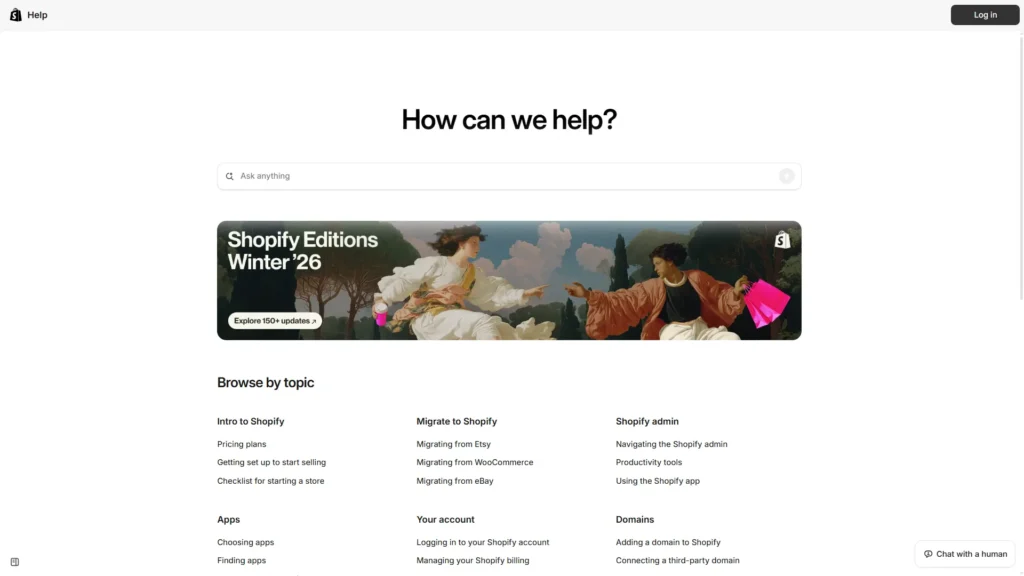
Type your problem in the Help Center search box.
For example:
- “Checkout not loading.”
- “Can’t log in to admin.”
- “Payout on hold”
Shopify’s AI assistant shows related help articles.
Sometimes the solution is already documented.
Step 2 — Click “Chat with us”
If the article does not fix your issue: Scroll down and click Chat with us.
You will be asked to:
- Log in
- Select your store
- Confirm your issue category
Then the chat window opens.
Step 3 — Send a complete first message
Your first message matters.
Include:
- Store URL
- Plan type
- Exact error message
- What you expected
- What happened instead
- Screenshots or screen recordings
- Time and timezone
This saves time and helps Shopify understand the issue faster.
Can’t Log In? Here’s the Correct Shopify Path (So You Still Reach Support)
Login issues are common. Many merchants panic here. But Shopify has a separate process for this. If you cannot log in, do not try random phone numbers you find online. Many are fake.
Use “I can’t access my account.”
On the login screen, choose the option that says you cannot access your account. Shopify will guide you through account recovery steps. You may need to verify:
- Email address
- Store name
- Payment details
- Government ID (in rare cases)
Use the account recovery form
If two-factor authentication blocks you, Shopify provides recovery forms. Fill in all details carefully. Missing information delays the process.
Important note about tickets
If you submit a login recovery form, it does not create a visible ticket in your support inbox. You must wait for Shopify’s reply via email.
Contact Shopify Support by Phone (Who Can Use It)
Many merchants search for “Shopify support phone number.” Here is the reality: Shopify does not publicly list a universal phone number. Phone support depends on your plan.
Shopify Plus phone support
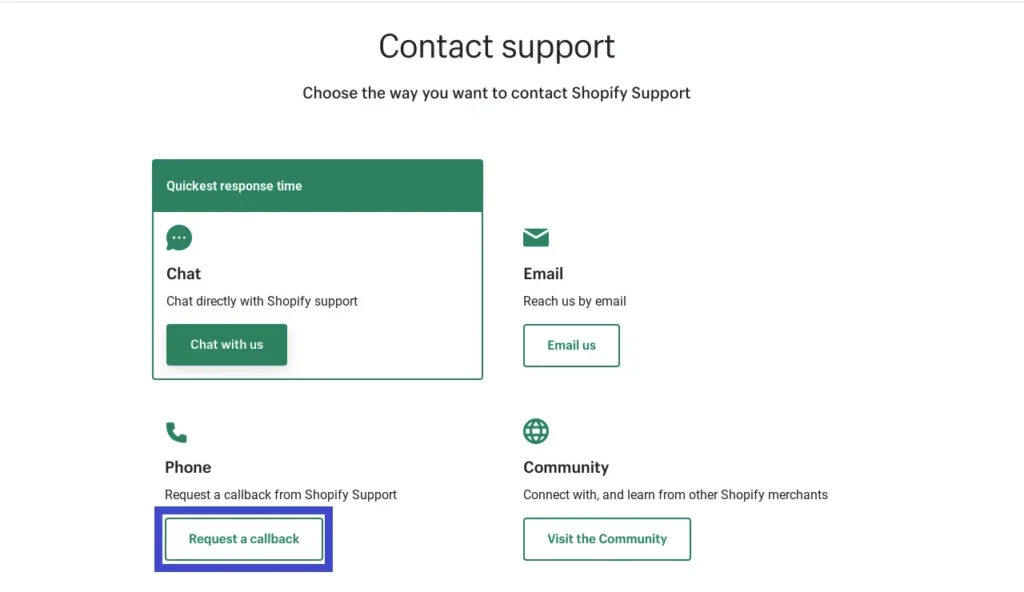
Shopify Plus merchants can request phone support inside the Help Center. After logging in, the system shows the phone callback option. You cannot directly dial Shopify without going through the Help Center.
Retail phone support
Retail (POS) merchants may also access phone support through the same route. Hardware issues like card readers often need real-time troubleshooting.
Scam warning
Never trust random websites listing Shopify phone numbers. Always start from the official Help Center.
Contact Shopify Support by Email (Plus + Retail)
Email support is limited. Most regular merchants cannot directly email Shopify.
Email access for Plus and Retail
If you are on Plus or Retail plans, email options appear inside the Help Center after login. You submit your issue and attach files.
When email works best
Email is useful when:
- You need to attach logs
- You are submitting compliance documents
- You have a billing dispute
- You want written documentation
Email responses may take longer than chat.
Choose the Right Support Channel Based on Your Issue
Before contacting support, match your issue to the right path. Choosing correctly saves time.
If this is your issue, do this first
- If you cannot log in → Use account recovery form
- If checkout is down → Check Shopify status page first
- If payouts are on hold → Contact chat and attach payout ID
- If billing question → Use chat (or email for Plus)
- If the theme is broken → Check recent theme edits first
- If app conflict → Disable recent app temporarily
- If POS is not syncing → Retail support via chat or phone
- If API issue → Use Partner support route
Developer / Partner Support (When Shopify Support Sends You in Circles)
Sometimes Shopify says, “This is a theme issue” or “This is an app issue.” At that point, platform support stops. You need technical support.
Use the partner organization’s support
If you are a developer or agency, log in through the Shopify Partner dashboard. Select the correct store or organization. Partner-level routing handles API and technical queries.
Use Shopify.dev assistant
Shopify has a developer assistant on Shopify.dev. It helps with:
- API documentation
- Liquid errors
- Webhook issues
- App configuration
Use developer community forums
Shopify also runs developer forums. Developers often share solutions for common coding errors.
Before you Contact Support, Check Shopify’s Status Page
Many times, the issue is not your store. It is Shopify itself. Before opening chat, check the Shopify status page.
Where to check
Visit Shopify’s official status page.
It shows:
- Admin downtime
- Checkout issues
- Payment delays
- API outages
Why this matters
During large events like Cyber Monday, login issues have happened before. If Shopify confirms an outage, support cannot fix it instantly. Waiting saves your time.
What to Send Shopify Support So They Reply Faster
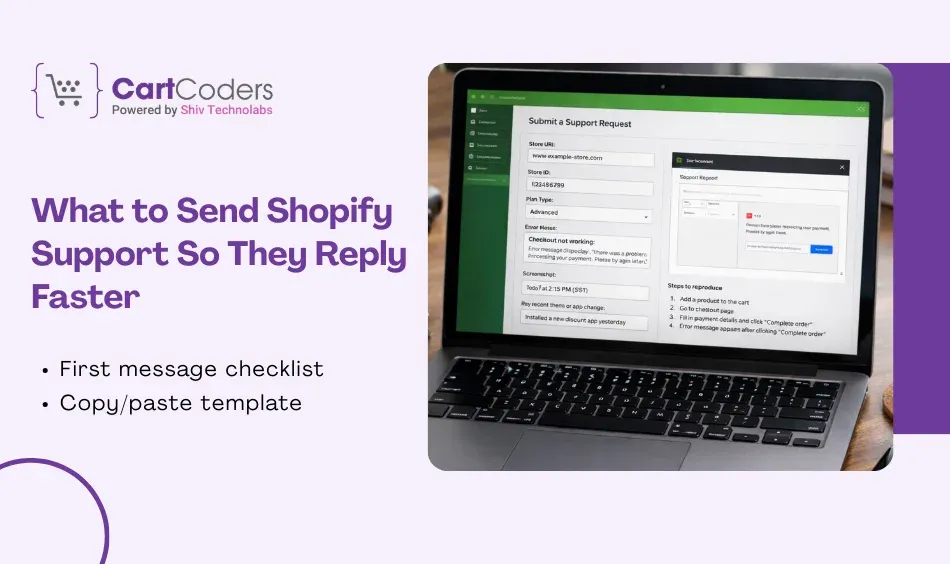
Many merchants waste time by sending short messages like: “Checkout not working.” That leads to 10 follow-up questions. Instead, send a structured message.
First message checklist
Include:
- Store URL
- Store ID (if known)
- Plan type
- Exact error
- Screenshot
- The time issue started
- Any recent theme or app change
- Steps to reproduce
Copy/paste template
You can use this:
“Hello, my store URL is _______. I am on the ______ plan. Since today at ______ (timezone), checkout shows this error: ______. I tested in Chrome and Safari. The issue happens on product ______. We installed app ______ yesterday. Please advise next steps.”
This format speeds up resolution.
Common Shopify Support Situations (And What Usually Fixes Them First)
Let’s look at common real-world scenarios.
I can’t access the admin
Check:
- Wrong password
- Two-factor authentication
- Expired staff access
Use account recovery if blocked.
Checkout not loading
Check:
- Recently added apps
- Custom checkout scripts
- Payment gateway status
If still broken, contact chat immediately.
Payout on hold
Payout holds often relate to:
- Risk review
- Verification documents
- Chargebacks
Provide payout ID in your message.
Domain or SSL is not working
Check:
- DNS settings
- SSL propagation
- Expired domain
Sometimes DNS changes take time.
App broke the theme
Duplicate your theme first. Disable the app temporarily. If the issue remains, contact the app developer before Shopify.
Shipping rates wrong
Check:
- Shipping zones
- Weight settings
- Carrier configuration
Screenshots help identify the error quickly.
When Shopify Support Can’t Fix Store-side Issues (And What CartCoders Can Do)
Shopify support handles platform issues. They do not fix custom theme code. They do not debug third-party app conflicts deeply. This is where a Shopify development agency helps.
What Shopify can fix
- Account access
- Billing problems
- Payment gateway issues
- Platform outages
- Risk reviews
What an agency like CartCoders can fix
- Theme errors
- Liquid bugs
- App conflicts
- Speed issues
- Script conflicts
- Conversion drop issues
- Tracking pixel errors
CartCoders store rescue process
At CartCoders, we:
- Clone your theme safely
- Reproduce the issue
- Isolate app conflicts
- Review console errors
- Test checkout flow
- Fix without breaking the live store
We work alongside Shopify support when needed.
Conclusion
The fastest way to contact Shopify Support is through the official Help Center chat.
Shopify Plus and Retail merchants also get phone and email options.
Always:
- Check the status page first
- Prepare issue details
- Send structured messages
If Shopify confirms the issue is theme-related, app-related, or store-side, CartCoders can step in and fix it quickly without risking your live store.
Need urgent Shopify technical support? Contact CartCoders and get expert help while Shopify handles platform-level checks.
FAQs
You can access the Help Center and choose account recovery options. Most other support requires a login.
Phone support is available mainly for Shopify Plus and Retail plans through the Help Center.
Start with live chat. Shopify creates tickets internally if escalation is required.
Email is not available for all plans. It depends on your subscription tier.
Chat responses are usually quick. Email responses may take longer.
Log in to Help Center using your Plus store account and select phone or email options.
Visit the official Shopify status page before contacting support.
Store URL, error message, screenshots, time issue started, and recent changes.


