
A merchant opens Shopify Admin to create a custom app for an ERP, warehouse, CRM, or order workflow. The familiar develop apps process is no longer available for creating a new legacy custom app. Since January 1, 2026, Shopify has moved new app creation toward the Dev Dashboard and Shopify CLI, while existing legacy custom apps can continue operating.
This change matters because choosing the wrong setup can lead to failed installations, missing API permissions, expiring access tokens, or the shop_not_permitted error. Shopify describes the dev dashboard as the better route for quick integrations, while apps with interfaces, extensions, or App Store distribution should generally use Shopify CLI.
Merchants planning a new integration should decide who owns the app, which stores will use it, how users will authenticate, and whether it needs a backend connection or embedded interface. Our Shopify app development guide explains app types, costs, timelines, and development decisions in more detail.
Quick answer: New legacy custom apps cannot be created through Shopify Admin after January 1, 2026. Existing legacy apps still work, but new apps should be created through the Dev Dashboard or Shopify CLI using the correct authentication and distribution method.
What Changed for Shopify Custom Apps?
Shopify did not disable every existing custom app. The change affects how new apps are created and managed. Existing admin-created legacy apps may continue working, while new integrations must follow Shopify’s current development process.
Migration of New Custom Apps to the Dev Dashboard
The Dev Dashboard gives merchants and developers one place to manage apps, stores, credentials, configurations, and development access. It also supports versioned app configuration, helping teams track scope, URL, webhook, and permission changes more clearly.
For a simple backend connection, such as syncing Shopify with an ERP or warehouse system, the Dev Dashboard may be enough. Apps requiring extensions, embedded interfaces, or App Store distribution should use Shopify CLI.
Impact on Admin-Created Legacy Custom Apps
Shopify stopped allowing new legacy custom apps to be created through the former Shopify Admin process from January 1, 2026. An existing app does not automatically stop working because of this change, and its current token can remain valid.
However, a deleted legacy app cannot be recreated through the old process. Merchants should therefore avoid removing an active app before documenting its scopes, webhooks, credentials, connected systems, and business purpose.
Quick Suggestion: Do not delete a working legacy app before recording its scopes, tokens, webhooks, API version, connected systems, and business purpose.

Compatibility of Existing Legacy Custom Apps
Yes. Shopify has confirmed that legacy custom apps created before the cutoff can continue operating. Merchants do not need to rebuild a stable app only because the creation process changed. An audit is still important when the app uses an old API version, has excessive scopes, lacks monitoring, or depends on credentials controlled by a former employee or agency.
Expert Insight: A working legacy app does not always need an immediate rebuild. Security gaps, unsupported APIs, unclear ownership, and new business requirements are stronger reasons to replace it.
Shopify Custom App Transition Timeline
| Period | Main change |
| Before 2022 | Private apps were commonly used for direct store integrations |
| 2022 onward | Shopify moved merchants from private apps toward custom apps |
| Late 2025 | Shopify announced the end of new legacy custom app creation |
| January 1, 2026 | New legacy custom apps could no longer be created |
| Current position | Existing legacy apps remain active, while new apps use the Dev Dashboard or Shopify CLI |
The practical issue is no longer whether custom development is available. It is selecting the correct ownership, authentication, and distribution structure before development begins.
Key Differences Between Legacy Custom Apps and Dev Dashboard Apps
| Area | Legacy custom app | Dev Dashboard app |
| Creation location | Shopify Admin | Shopify Dev Dashboard |
| Availability | Existing apps only | Required for new apps |
| Credentials | Admin-generated credentials and token | Client ID, client secret, and supported token flow |
| Configuration | Managed inside one store | Versioned app configuration |
| Token model | Existing static token may remain valid | Depends on authentication method |
| Store access | Created for one store | Depends on organization and distribution |
| Extensions | Limited old workflow | Managed through Shopify CLI |
| Best use | Maintaining a working integration | New custom apps and integrations |
Businesses building a new connector for ERP, CRM, inventory, fulfillment, or 3PL workflows should review their architecture before creating the app. CartCoders provides Shopify app development services for custom applications, API connections, app rebuilding, and long-term technical support.
What to Choose from Shopify Dev Dashboard and Shopify CLI?
The right development route depends on what the app must do. The Dev Dashboard works well for direct system connections, while Shopify CLI supports apps that need interfaces, extensions, local development, or wider distribution.
When Is the Dev Dashboard the Right Choice?
The Shopify Dev Dashboard is suitable for backend integrations that connect Shopify with another business system. Common examples include ERP data exchange, CRM updates, inventory synchronization, order routing, warehouse management, and 3PL connections.
It is a practical choice when the app does not require an embedded Shopify Admin interface or frontend extension. Shopify also allows teams to manage app credentials, versions, stores, and permissions from the dashboard.
When Should You Use Shopify CLI?
Shopify CLI is a better choice when the app needs an embedded interface, React-based admin screens, checkout extensions, theme app extensions, or other Shopify extensions.
It also supports local development, configuration files, testing, and app version releases. Businesses planning complex functionality can review CartCoders’ Shopify custom app development services for technical planning and development support.
Comparison Between Dev Dashboard vs Shopify CLI
Choosing between the Dev Dashboard and Shopify CLI depends on the app’s purpose, technical needs, and development scope. The comparison below explains how both options differ across key development areas.
| Area | Dev Dashboard | Shopify CLI |
| Best Suited For | Best for API-based integrations, private business tools, and apps without a complex interface. | Best for apps that include admin interfaces, storefront features, checkout features, or Shopify extensions. |
| Local Development | Local development is usually limited because most settings are managed directly through the dashboard. | Local development is a central part of the process. Developers can build, test, and preview features locally. |
| Embedded Admin Interface | Usually unnecessary for simple integrations that only exchange data between Shopify and another system. | Supported for apps that need screens, settings, reports, or controls inside the Shopify admin. |
| Shopify Extensions | Extension support is limited because the dashboard mainly handles app settings and API credentials. | Supports theme app extensions, checkout extensions, admin extensions, functions, and other Shopify app features. |
| ERP or CRM Connection | Suitable for direct ERP, CRM, inventory, order, or customer-data connections without a merchant-facing interface. | Suitable when the integration also needs configuration pages, status screens, logs, or merchant controls. |
| Setup Effort | Lower for basic integrations because fewer development tools and interface components are required. | Higher because developers must configure the CLI, project files, extensions, testing, and deployment workflow. |
| App Configuration | App details, API access, permissions, URLs, and credentials are mainly managed through the dashboard. | Much of the app structure and configuration is managed through project files, code, and CLI commands. |
| Typical User | Commonly used by merchants, internal IT teams, integration specialists, or developers handling simple API connections. | Mainly used by Shopify app developers building full applications, interfaces, functions, and extensions. |
A backend inventory connector may only need the Dev Dashboard. A merchant-facing app with settings, reports, or checkout features will usually require Shopify CLI.
Selecting the Right Shopify App Distribution Method
Distribution controls which merchants can install the app. This decision should be made before authentication and installation work begins because each model has different ownership and access requirements.
| Distribution type | Suitable use |
| Public distribution | An app intended for multiple unrelated merchants |
| Custom distribution | An app built for one merchant or selected stores |
| Same-organization app | An internal app used by stores owned by the same Shopify organization |
| Shopify App Store listing | A commercial app intended for wider merchant adoption |
A business building an internal connector for its own stores may use the same-organization route. An agency building for an unrelated client generally needs custom distribution with authorization code authentication.
Businesses considering a multi-merchant product can also read our guide on public and private Shopify app development before selecting a distribution model.
Expert Insight: App distribution and authentication should be decided before development begins. A wrong choice can cause installation failures, token issues, and access errors later.
Common Reasons Client Credentials Fail on a Store
The client credentials grant works only when the app and store belong to the same Shopify organization. Installing an app on a merchant’s store does not place that store inside the developer’s organization.
When an agency-owned app requests a token for an unrelated client store, Shopify may return:
shop_not_permitted: Client credentials cannot be performed on this shop
For an unrelated merchant store, the app should normally use custom distribution with the authorization code grant. Embedded apps may use token exchange when the app architecture supports it.
Do this: The shop_not_permitted error usually means the app and store belong to different Shopify organizations. Change the authentication method rather than repeatedly generating new credentials.
Limitations of Creating Apps Through Collaborator Access
A collaborator account provides access only to the store areas approved by the merchant. App development in the Dev Dashboard requires organization-level app development permission, which differs from normal store collaborator access.
Depending on the ownership model, the merchant may need to create the app within its organization or add the developer as an authorized staff user. The agency can then handle configuration, coding, testing, and installation.
Before development begins, both parties should confirm:
- Who owns the Shopify organization and app
- Who controls the source-code repository
- Where credentials and secrets are stored
- Who manages hosting, renewals, and technical support
- What access remains after the agency handover
Clear ownership makes future updates easier and prevents the integration from depending on one employee or external development account.
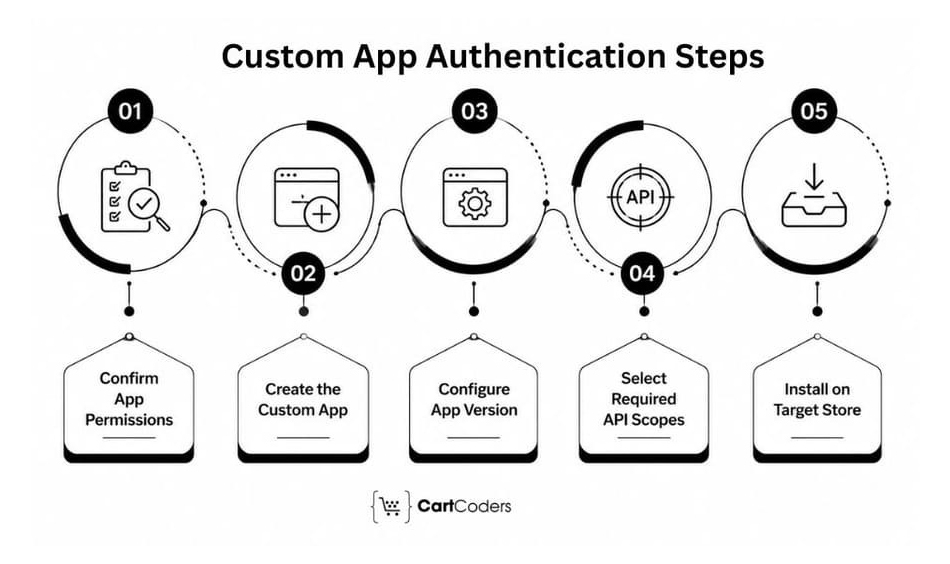
Creating the app is only one part of the process. You must also configure its permissions, release a version, select a suitable authentication method, and test access before connecting live business systems.
Step 1: Confirm App Ownership and Development Permissions
First, decide whether the merchant or development agency will own the app. The selected Shopify organization should retain control of app settings, credentials, hosting access, and future developer permissions.
For a merchant-owned integration, the store owner can create the app and grant the development team suitable organization access. This arrangement reduces ownership and handover problems later.
Step 2: Create the App in the Dev Dashboard
Open the Shopify Dev Dashboard, select the correct organization, and create a new app. Add a clear name that reflects the integration, such as ERP Order Sync or Warehouse Inventory Connector.
Confirm the organization before continuing. Creating the app under the wrong account can affect installation, authentication, and long-term ownership.
Step 3: Configure and Release an App Version
An app version records its approved configuration at a specific point. Add the required API scopes, app URL, redirect URLs, webhook API version, and other relevant settings before releasing it.
Shopify does not automatically apply newly added scopes to installed stores. The merchant must approve those permissions after a new version is released.
Step 4: Select Only the Required API Scopes
Every scope gives the app access to a defined area of store data. Requesting only the permissions needed for the integration reduces security risk and makes merchant approval easier.
Examples include:
- read_products for product data
- read_inventory and write_inventory for stock updates
- read_orders for order processing
- read_customers for approved customer workflows
- Fulfilment scopes for warehouse or 3PL connections
Shopify maintains a complete list of Admin API access scopes. Customer and order data may also require protected customer data approval, depending on the app and distribution model.
Step 5: Install the App on the Correct Store
After releasing the app version, select the intended store and start the installation. Review the requested scopes carefully and approve access from the merchant account.
Once installed, confirm the status inside the Dev Dashboard and Shopify Admin. Do not connect an ERP, CRM, or warehouse platform until basic API requests work correctly.
Where Can You Find the Client ID and Client Secret?
Open the app’s settings in the Dev Dashboard to view its client ID and client secret. These values identify the app but do not work as a ready-to-use Admin API access token.
The client secret should remain in encrypted server-side storage. Shopify also recommends rotating credentials regularly and using the secret to verify the authenticity of incoming webhook requests.
How Do You Get an Admin API Access Token?
The token process depends on app ownership, distribution, and interface type. Shopify currently supports three main approaches.
| Authentication Method | Suitable Use | Merchant Action | Token Behavior |
| Client credentials | App and store owned by the same organization | Initial installation | Short-lived token |
| Authorization code grant | Standalone app installed by another merchant | Merchant approves access | Online or offline access |
| Token exchange | Embedded app running in Shopify Admin | Shopify-managed installation | Session token exchanged for API access |
Client credentials cannot be used for a public or custom-distributed app installed on an unrelated merchant’s store. Those apps should use token exchange or the authorization code grant.
What Does a 24-Hour Access Token Mean?
Tokens created through the client credentials grant expire after 24 hours. A production integration must request a new token programmatically rather than relying on a copied token stored permanently.
The application should cache the token securely, check its expiry time, request a replacement before needed, and retry failed requests carefully. This is especially important for continuous inventory, order, ERP, and 3PL synchronization.
Direct answer: A 24-hour Shopify access token does not require daily manual work. The connected application should request and store a fresh token automatically using its protected client credentials.
How Should You Test the App Before Production?
Start on a development or test store where possible. Test product reads, order access, inventory updates, webhook delivery, authentication renewal, and permission failures before using real customer data.
A practical test should also confirm:
- Only approved scopes are available
- Webhooks are signed and processed once
- Expired tokens renew correctly
- API errors appear in monitoring logs
- Failed updates can be retried safely
- Original data can be restored when needed
Businesses connecting Shopify with an ERP, CRM, warehouse, or external platform can use professional Shopify integration services to plan authentication, data mapping, testing, and ongoing monitoring.
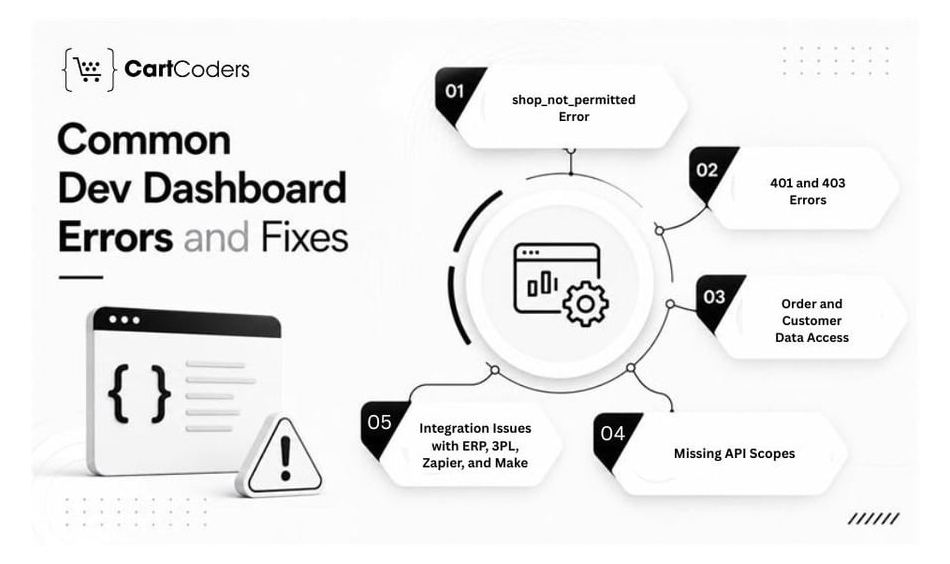
Most Dev Dashboard failures come from an incorrect authentication method, missing scopes, expired tokens, or unapproved data access. Reading the complete error response before changing credentials can prevent repeated installation attempts.
shop_not_permitted Error
This error commonly appears when an app uses the client credentials grant for a store outside its Shopify organization. Client credentials are intended for eligible stores owned by the same organization as the app.
For an unrelated client store, use the correct custom distribution and authorization flow. Creating another client secret will not resolve an organization mismatch.
401 or 403 Error?
A 401 Unauthorized API response usually means authentication credentials are missing, incorrect, or expired. A 403 Forbidden response generally means the token is valid, but the app lacks the required scope or user permission.
Check the token, request headers, installed app version, granted scopes, and user permissions before reinstalling the app.
Order and Customer Data Access Restrictions
Orders and customer records may contain protected customer data. Public and custom-distributed apps must meet Shopify’s data requirements and request appropriate access when their use case involves protected fields.
Request only the information needed for the workflow. Document why each field is required and how the app stores, processes, and deletes that data.
Missing API Scopes After App Updates
Adding a scope to the app configuration does not automatically grant it to an existing installation. Release the updated configuration and have the merchant approve the additional permissions.
Compare configured scopes with the scopes returned for the current installation. This confirms whether the problem exists in configuration, approval, or token handling.
ERP, 3PL, Zapier, and Make Integration Issues
Some older connectors expect merchants to paste a permanent Admin API token. New Dev Dashboard apps may instead require programmatic token requests or an OAuth installation flow.
Possible routes include using the vendor’s official Shopify app, adding OAuth support, creating a secure token service, or replacing the connector with a custom Shopify integration. Keep a working legacy app active until the replacement passes production testing.
Common Shopify Dev Dashboard Errors and Fixes
| Error or issue | Likely cause | Recommended check | Practical fix |
| shop_not_permitted | App and store ownership mismatch | Compare Shopify organizations | Use the correct distribution and authentication flow |
| 401 Unauthorized | Invalid or expired token | Check credentials and token expiry | Request a valid token and retry |
| 403 Forbidden | Missing scope or user permission | Review granted scopes | Add the scope and obtain approval |
| New scope unavailable | Installation still has old permissions | Query current installation scopes | Release the version and ask the merchant to approve |
| Order or customer access denied | Protected data access is missing | Review API access requests | Request suitable protected customer data access |
| Redirect URI error | OAuth URL does not match configuration | Compare exact redirect URLs | Correct and release the app configuration |
| Installation link fails | Wrong distribution or store selection | Review app distribution settings | Create a valid installation route |
| Connector stops after one day | Short-lived token was stored permanently | Review token expiry handling | Request and cache fresh tokens automatically |
Shopify’s official API response code guide should be the first reference when diagnosing HTTP errors. Teams should also record request IDs, timestamps, API versions, and affected operations before contacting support.
Direct answer: Start troubleshooting by identifying whether the failure concerns authentication, authorization, data approval, or installation. Changing credentials without finding the category often creates more confusion.
How Should You Audit, Move, or Retire Existing Legacy Custom Apps?
Existing legacy custom apps can continue working, so merchants do not need to replace every app immediately. Shopify still allows apps created before January 1, 2026, to be managed through Shopify Admin.
The better approach is to audit each app and decide whether it should remain, receive updates, move to a new setup, or be retired.
Create a Complete Legacy App Inventory
Start by documenting what each app does and which business processes depend on it. Include the connected store, app owner, developer, API version, scopes, webhooks, credentials, external systems, and last successful activity.
This inventory helps teams identify apps that support orders, inventory, customer data, fulfilment, reporting, or other critical workflows.
Check Security and Maintenance Risks
A working app can still create risk when credentials are exposed, scopes are too broad, or ownership is unclear. Review former employee access, unsupported API versions, failed webhooks, missing logs, and undocumented integrations.
Shopify requires apps to request specific API access scopes, so unused permissions should be removed wherever possible.
Should You Keep, Update, Rebuild, Replace, or Retire the App?
| Decision | When it makes sense |
| Keep | The app is stable, secure, documented, and actively supported |
| Update | It needs newer API versions, scopes, webhooks, or monitoring |
| Rebuild | Its architecture cannot support current business needs |
| Replace | A supported Shopify app can perform the same function |
| Retire | The app is unused or no longer provides business value |
| Consolidate | Several apps manage similar workflows or duplicate data |
A rebuild should follow a clear business reason. The January 2026 change alone does not require merchants to replace a stable legacy app. (Shopify Developer Community Forums)
How Do You Move a Legacy App Safely?
Document the current workflow before building the replacement. Create the new app, configure the minimum scopes, test it on a development store, and compare results with the legacy integration. Run both apps in parallel for a limited period where possible. Remove the old app only after order, inventory, customer, webhook, and reporting data match correctly.
Who Owns the App When the Agency Leaves?
The contract should clearly define app ownership, source code, credentials, hosting, repositories, documentation, and future support. The merchant should retain access to every system required to operate the integration.
For merchant-specific workflows, creating the app under the merchant’s organization can make future access and handover easier.
Pre-Launch and Handover Checklist
Use a short final review before moving the new app into production:
- Confirm the required scopes and released app version
- Test authentication and token renewal
- Verify webhooks, logs, alerts, and error handling
- Record the API version and connected systems
- Confirm repository, hosting, and credential ownership
- Prepare a rollback process
Apps processing customer or order information should also meet Shopify’s protected customer data requirements.
blog_banner_one heading=”Planning a new custom Shopify app after the 2026 changes?” content=”Work with CartCoders for Dev Dashboard setup, Shopify CLI development, custom distribution, API connections, testing, and long-term support.” button_text=”Contact our Shopify app development team” button_url=”https://cartcoders.com/shopify-app-development “]
How Can CartCoders Support Shopify Custom App Changes?
Shopify’s changing app development process can affect authentication, API access, app permissions, hosting, and existing integrations. A legacy app may continue working for a short period, but outdated methods can create security risks, failed data transfers, and compatibility issues during future Shopify updates.
CartCoders begins with a technical review of the existing app, its business purpose, and every connected system. This helps determine whether the app needs a small update, partial rebuild, or complete replacement.
Our Shopify custom app support can include:
- Reviewing legacy and unsupported app configurations
- Creating and configuring apps through the Dev Dashboard
- Updating authentication and access token processes
- Reviewing API scopes and merchant permissions
- Rebuilding deprecated API functions
- Migrating webhooks and background processes
- Testing order, product, customer, and inventory data flows
- Connecting Shopify with ERP, CRM, WMS, warehouse, or 3PL systems
- Adding admin interfaces when merchants need more control
- Reviewing app security, performance, and error handling
- Providing maintenance for future Shopify API changes
The goal is not simply to rebuild old code. The new app should support current operations, reduce manual work, protect business data, and remain easier to maintain.
Contact CartCoders to review your existing Shopify app and create a practical migration plan based on your systems, workflows, and long-term requirements.
Conclusion
Shopify’s January 2026 change ended the creation of new legacy custom apps through Shopify Admin. Existing legacy apps can still operate and remain manageable, so merchants do not need to replace a stable integration without a clear technical or business reason.
New apps should be created through the Dev Dashboard or Shopify CLI. Before development begins, confirm app ownership, distribution, authentication, required scopes, protected data access, and long-term maintenance responsibilities. A careful audit can help businesses keep reliable apps, update weak integrations, and retire unused connections.
Frequently Asked Questions
No. Shopify stopped the creation of new legacy custom apps through Shopify Admin on January 1, 2026. New custom apps must use the Dev Dashboard.
Existing legacy apps created before January 1, 2026, can continue operating. Shopify also allows merchants to manage them through Shopify Admin.
The Shopify Dev Dashboard now supports new custom app creation and management. Shopify CLI is used when an app requires extensions, interfaces, or code-based development.
The Dev Dashboard provides the client credentials used to request an access token. The exact token process depends on the selected authentication method and app distribution model.
No. The client secret identifies and authenticates the app when requesting access. An access token authorizes API requests for an installed store.
This error usually appears when the app and store do not belong to the same Shopify organization. The integration may need custom distribution and another authentication flow.
Collaborator access alone may not provide the required organization-level app development permissions. The merchant may need to create the app or grant suitable organization access.
Usually, no. An app built for one merchant can use custom distribution. Public distribution is intended for apps serving multiple unrelated merchants.
Yes, but the correct model depends on store ownership. Stores within one organization and unrelated merchant stores can require different distribution and authentication methods.
Tokens issued through the client credentials grant are short-lived. The application should automatically request and securely cache a replacement token before expiry.
Apps accessing protected order or customer information may need approval and must explain why the data is required. Shopify recommends requesting only necessary fields.
Rebuild it when security, API support, missing documentation, ownership, or new functionality creates a valid reason. The January 2026 change alone does not require rebuilding.


