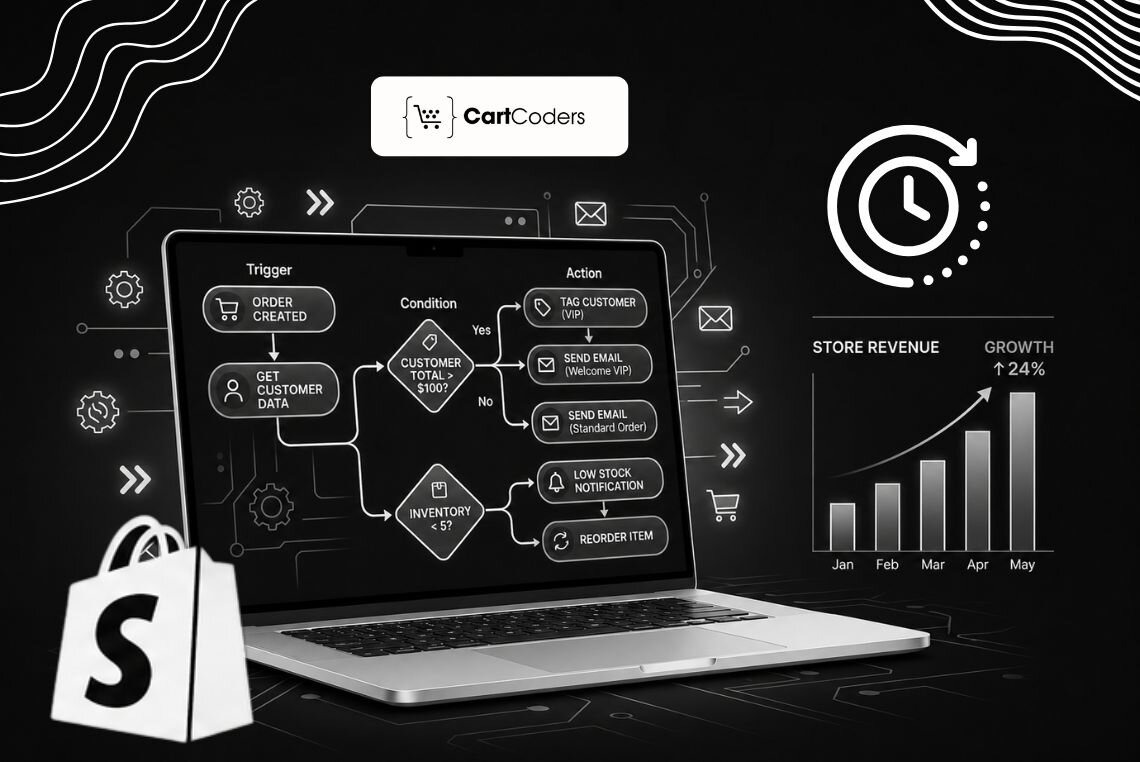

A growing Shopify store runs on dozens of small tasks every day. Someone checks orders, tags customers, reviews risky purchases, watches inventory, updates spreadsheets, and pings the team about big sales. Each task takes minutes, and together they eat hours every week.
Order volume keeps climbing, which makes the manual work heavier. Shopify merchants reached a record $14.6 billion in Black Friday Cyber Monday sales in 2025, up 27% from the year before. Higher order volumes bring more tags to manage, checks to perform, and alerts to monitor.
Shopify Flow helps eliminate repetitive manual work through no-code automations that operate across Shopify and connected apps. According to Shopify’s Help Center, Flow monitors store events and automatically executes actions based on predefined workflow logic.
This guide shows which manual tasks Flow replaces across orders, inventory, fraud, customer tags, fulfillment, and reporting. You also get ten ready-to-build automations, a setup method, ideas by store type, and the point where custom Shopify development beats native Flow. It suits store owners, Shopify Plus brands, operations managers, and eCommerce founders who want their hours back.
What Is Shopify Flow and Why Does It Matter?
Shopify Flow is Shopify’s no-code eCommerce automation app. It works through three core parts:triggers, conditions, and actions. A trigger starts the workflow, a condition checks whether the next step should run, and an action completes the task (Shopify Help Center).
Currently, flow is important for two reasons. First, it is now free on the Basic, Grow, Advanced, and Plus plans, so most stores can run it. Second, Shopify added Sidekick AI workflow building, live preview testing, and the option to cancel runs, which make Flow faster and safer to use.
Sidekick lets you describe the workflow in plain English and builds it for you. You review, adjust, and turn it on.
Why Shopify Flow Is Useful for Growing Stores
Shopify stores usually start with simple operations. It saves time on routine work and reduces the steps your team forgets during busy periods. Flow helps teams:
- Automate Shopify tasks without custom code
- Reduce repeated admin checks
- Respond faster to risky orders or low inventory
- Keep customer and order tags consistent
- Connect Shopify with apps and external systems
- Build cleaner order and fulfillment workflows
Shopify’s App Store listing also describes Flow as an automation platform for marketing, order fulfillment, inventory management, fraud prevention, and more.
For stores that need deeper technical support, a team offering Shopify development services can help map business operations before building workflows.
Shopify Flow Is Not Only for Technical Teams
The real value of Shopify Flow comes from mapping your daily operations, not from technical skill. Anyone who knows the store’s tasks can plan a useful workflow. The editor handles the build.
Shopify Plus stores reach further with advanced actions like Send HTTP Request and deeper app connections. For those builds, our Shopify Plus development team turns complex operations into clean, reliable automations.
Which Manual Shopify Tasks Can Flow Replace?
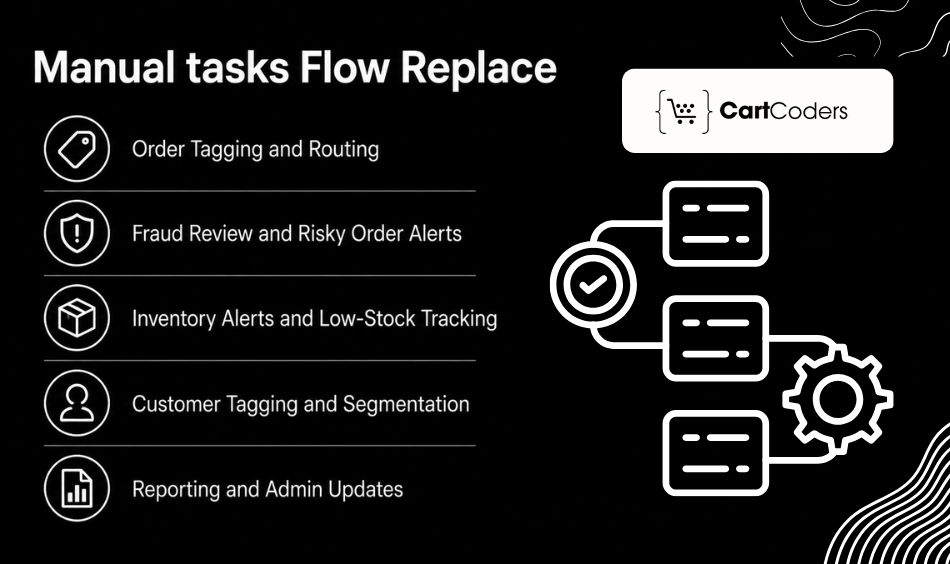
Shopify Flow works best when a task follows clear “if this happens, then do that” logic. These tasks often happen inside Shopify Admin, email, spreadsheets, support tools, or fulfillment systems.
Here are the most common manual Shopify tasks that Flow can replace.
Order Tagging and Routing
Manual order sorting becomes difficult when order volume grows. Shopify Flow can tag and route orders based on order value, customer type, location, shipping method, risk level, or product type.
Useful Shopify order automation examples include:
- Tag high-value orders for priority handling
- Tag first-time customer orders for onboarding
- Tag international orders for customs and shipping rules
- Send VIP orders to the fulfillment team
- Flag orders with special delivery requirements
This helps fulfillment teams work faster because every order already carries the right context.
Fraud Review and Risky Order Alerts
Risky orders need quick attention before fulfillment. Shopify explains that Flow can help automate high-risk order management, including tasks inside Shopify Admin for reviewing risky orders. The financial impact of eCommerce fraud continues to grow. As per Juniper Research, global eCommerce fraud is set to rise from about $56 billion in 2025 to $131 billion by 2030. Every $1 of fraud now costs US merchants around $4.61 once you add chargebacks, fees, and lost goods, up 32% since 2022.
Useful Shopify fraud prevention workflow examples include:
- Alert the team when an order has high-risk signals
- Hold fulfillment for certain risk levels
- Add internal tags for review
- Notify Slack or email before shipping
- Create a review queue for operations teams
This reduces the chance of a risky order slipping through during busy periods.
Inventory Alerts and Low-Stock Tracking
Flow watches stock levels and warns your team before you sell out. It removes the need for daily inventory checks. The cost of getting this wrong is steep. Out-of-stocks drain about $1.2 trillion in lost sales from retailers each year, and roughly 72% of stockouts trace to retailer-side issues, not suppliers.
Useful Shopify inventory automation examples include:
- Alert the team when stock falls below a set number
- Tag products as low stock
- Create reorder reminders
- Notify purchasing teams
- Flag fast-moving SKUs before they sell out
For larger inventory systems, Shopify integration services can connect Shopify with ERP, CRM, inventory, shipping, and accounting tools.
Customer Tagging and Segmentation
Flow tags customers by behavior, which keeps your segments current without manual list building. Accurate tags keep your email and loyalty platforms running effectively. Adding these tags manually takes time and often leads to inconsistent segmentation.
Useful Shopify customer tagging automation examples include:
- Tag customers after repeat purchases
- Add VIP tags after the lifetime spent crosses a limit
- Tag wholesale customers
- Tag first-time buyers
- Segment customers by product category interest
- Trigger email flows through connected apps
This gives marketing teams cleaner customer segments without manual list building.
Reporting and Admin Updates
Operations teams often copy data into sheets, send daily summaries, and notify teams about special orders. Flow sends summaries and pushes data so your team stops copying numbers by hand. Alerts reach the right people at the right time.
Useful Shopify admin automation examples include:
- Send daily order summaries
- Push order data to Google Sheets
- Notify teams about large orders
- Create support alerts for delivery issues
- Send internal notes for fulfillment exceptions
This helps teams keep visibility without checking dashboards all day.
Top 10 Shopify Flow Automations That Save Hours Every Week
These ten automations replace the manual tasks that slow-growing stores down. Each one lists the trigger, condition, action, and the manual work it removes. Start with the one that matches your biggest time drain.
| Automation | Manual Task Replaced | Best For |
|---|---|---|
| Low-stock alert | Daily inventory checking | Product-heavy stores |
| High-risk order alert | Manual fraud review | High-volume stores |
| VIP customer tagging | Manual customer segmentation | Retention-focused brands |
| Large order notification | Admin order checking | B2B and DTC stores |
| First-time customer tag | Manual CRM tagging | Email marketing teams |
| Wholesale order routing | Manual order sorting | B2B Shopify stores |
| Out-of-stock product tag | Manual product updates | Stores with fast-moving SKUs |
| Review request trigger | Manual follow-up | Customer experience teams |
| Failed payment alert | Manual payment tracking | Subscription stores |
| Return-prone order flag | Manual return checking | Apparel and accessory brands |
1. Low-stock Alert Workflow
Low-stock alerts are often the best first Shopify Flow workflow. They replace the habit of checking inventory manually every morning.
Trigger: Inventory quantity changed
Condition: Product inventory falls below your chosen number
Action: Send alert, tag product, notify purchase team
Manual work replaced: Daily inventory checks
Example:
If a best-selling product drops below 10 units, Flow can tag it as “Low Stock” and send an alert to the purchasing team.
This workflow helps prevent missed reorder windows. It also gives your team enough time to act before customers see out-of-stock products.
2. High-risk Order Review Workflow
Fraud checks become harder when order volume grows. Teams may miss high-risk orders during busy sales periods, product launches, or holiday campaigns.
Trigger: Order created
Condition: Order risk level is high
Action: Tag order, notify team, hold fulfillment
Manual work replaced: Checking every order manually
Example:
When Shopify identifies a high-risk order, Flow can add a “Manual Review” tag and send an alert before the order reaches fulfillment.
This workflow helps protect revenue and reduce fulfillment mistakes. It also gives teams a consistent review process instead of relying on memory.
Shopify’s documentation highlights Flow for managing high-risk orders inside Shopify Admin. (Shopify Help Center)
3. VIP Customer Tagging Workflow
VIP customer tags help marketing and support teams treat high-value customers differently. The challenge is keeping those tags updated.
Trigger: Order paid
Condition: Customer lifetime value crosses your chosen threshold
Action: Add VIP customer tag
Manual work replaced: Manual customer list building
Example:
When a customer spends more than $1,000 in lifetime purchases, Flow can add a “VIP” tag automatically.
Marketing teams can use this tag for loyalty offers, private sale access, early product drops, or customer appreciation campaigns.
This workflow is simple, but it creates cleaner retention segments over time.
4. First-time Buyer Workflow
First-time buyers need a different experience from repeat customers. They may need onboarding emails, care guides, product education, or support follow-ups.
Trigger: Customer created or order paid
Condition: Customer order count equals one
Action: Add first-time buyer tag
Manual work replaced: Manual segmentation
Example:
When a customer places their first order, Flow can tag them as “First-Time Buyer.”
That tag can trigger email journeys in tools like Klaviyo, Omnisend, or another connected marketing app.
This workflow helps teams build better customer journeys without manually updating customer records.
5. Large Order Alert Workflow
Large orders often need special handling. They may need faster review, inventory checks, B2B team attention, or personal follow-up.
Trigger: Order created
Condition: Order total is above your chosen amount
Action: Send Slack or email alert
Manual work replaced: Checking order value manually
Example:
If an order value is above $750, Flow can notify the operations team instantly.
This helps teams spot high-value orders faster and reduce the chance of fulfillment delays.
For B2B brands, this workflow can support order review, account manager alerts, and special shipping coordination.
6. Wholesale Order Routing Workflow
Wholesale and B2B orders often need different handling than standard customer purchases. Teams may need to apply special pricing rules, approval checks, custom shipping methods, or account-specific workflows.
Trigger: Order created
Condition: Customer tagged as wholesale or B2B
Action: Add order tag, notify B2B team, assign fulfillment workflow
Manual work replaced: Reviewing and sorting wholesale orders manually
Example
When a wholesale customer places an order, Shopify Flow can automatically:
- Add a Wholesale Order tag
- Notify the account management team
- Route the order to the correct fulfillment process
- Trigger internal approval workflows
This helps prevent wholesale orders from entering standard DTC fulfillment queues.
For complex B2B rules, our Shopify Plus B2B and B2C solutions connect Flow with custom pricing and approval logic.
7. Out-of-Stock Product Management Workflow
Managing unavailable products manually becomes difficult as product catalogs grow. Teams often forget to update collections, merchandising sections, or marketing campaigns.
Trigger: Inventory quantity reaches zero
Condition: Product inventory equals zero
Action: Add out-of-stock tag, remove from collections, notify team
Manual work replaced: Monitoring unavailable products
Example
When inventory reaches zero:
- Flow tags the product as Out of Stock
- Removes it from featured collections
- Notifies merchandising teams
- Alerts purchasing teams about replenishment
This prevents customers from repeatedly finding unavailable products through promotional sections.
8. Product Review Request Workflow
Customer reviews influence buying decisions and improve trust. However, many stores still rely on manual review outreach.
Trigger: Order fulfilled
Condition: Order delivered after specified days
Action: Trigger review request workflow through integrated apps
Manual work replaced: Sending review requests manually
Example
Seven days after delivery, Flow can:
- Trigger a review email
- Segment customers for feedback campaigns
- Notify customer success teams when reviews are submitted
This creates a consistent review collection process without daily management.
Customer-generated content also supports SEO and improves product page quality.
9. Failed Payment Recovery Workflow
Failed payments affect subscription businesses, pre-orders, installment payments, and recurring purchases.
Teams often spend hours reviewing failed transactions and contacting customers manually.
Trigger: Payment failed
Condition: Payment status failed
Action: Notify customer service team, tag customer, trigger recovery workflow
Manual work replaced: Monitoring payment failures
Example
If a recurring payment fails:
- Flow tags the customer account
- Notifies support teams
- Sends payment update reminders
- Starts a recovery sequence
This helps recover revenue before subscriptions or repeat purchases are lost.
10. Repeat Purchase Loyalty Workflow
Returning customers are usually more profitable than first-time buyers. Identifying them manually becomes difficult as order volume increases.
Trigger: Order paid
Condition: Customer order count reaches target threshold
Action: Add loyalty tag, trigger rewards workflow
Manual work replaced: Manual loyalty segmentation
Example
When a customer completes their fifth order:
- Flow applies a loyalty tag
- Notifies marketing systems
- Triggers reward campaigns
- Creates VIP upgrade opportunities
This helps retention teams focus on customer lifetime value rather than constantly building lists manually.
How to Keep Shopify Flow Automations Clean and Manageable?
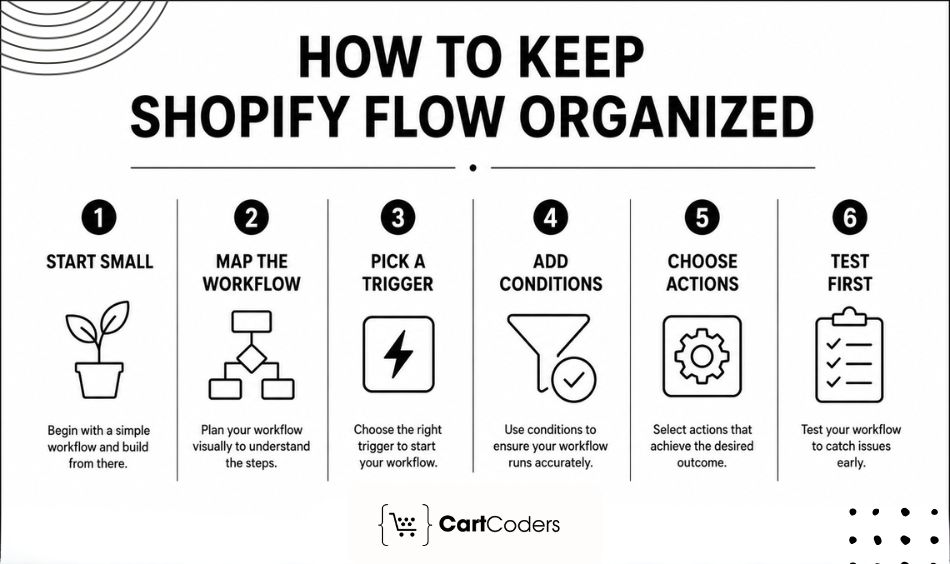
A well-designed Shopify Flow workflow begins with a specific task, a defined condition, and a clear outcome. Rather than automating every process at once, the focus should be on eliminating repetitive work while maintaining accurate tags, meaningful alerts, and reliable operational workflows.
Start small, test carefully, and document every workflow. This keeps your Shopify Flow automations easy to manage as your store grows.
Start With Repeatitive Task
Choose a task your team handles every day or every week. Good examples include low-stock checks, high-value order alerts, customer tagging, fraud review, or wholesale order routing.
For example, if your team checks inventory every morning, start with a low-stock alert workflow. If your operations team checks large orders manually, start with a high-value order notification.
One clean workflow helps your team see the value before you add more automation.
Write the Workflow in Simple Language First
Before opening Shopify Flow, write the workflow in one simple sentence. This helps you avoid overcomplicated logic.
Example:
When an order value is over $500, tag it as high value and notify the operations team.
This sentence gives you the full workflow structure:
- Trigger: Order created
- Condition: Order value is over $500
- Action: Add tag and send alert
Writing it this way makes the workflow easier to build and review.
Pick the Trigger
The trigger is the event that starts your Shopify Flow workflow. Shopify defines triggers as the events that begin a workflow, such as an order being created (Shopify Help Center), inventory being changed, or fulfillment being completed. The trigger also decides which conditions and actions you can use next.
Example:
- For fraud review, use Order created
- For inventory alerts, use Inventory quantity changed
- For review requests, use Order fulfilled
- For VIP tagging, use Order paid
A clear trigger prevents the workflow from running at the wrong time.
Add the Right Condition
A condition tells Shopify Flow when the action should happen. Without conditions, workflows can become too broad and create wrong tags or unnecessary alerts.
Example:
If every order triggers a Slack alert, your team may ignore notifications. But if only orders above $500 trigger alerts, the workflow becomes useful.
Useful conditions include:
- Order total is greater than $500
- Inventory quantity is below 10
- Customer order count equals 1
- Risk level is high
- Customer tag includes wholesale
Good conditions keep automation accurate.
Choose the Action
The action is what Shopify Flow does after the rule is met. Keep actions focused and practical.
Common Shopify Flow actions include:
- Add order tag
- Add customer tag
- Send internal email
- Send Slack alert
- Hold fulfillment
- Update product status
- Trigger an app workflow
- Send data to another system
Example:
If a high-risk order comes in, the action can be:
- Add “Manual Review” tag
- Notify the operations team
- Hold fulfillment
This gives your team a clear next step.
Test Workflows Before Going Live
Testing prevents automation mistakes from affecting real orders or customers. Before activating any workflow, test it with sample scenarios.
Check:
- Did the workflow start at the right time?
- Did the condition apply correctly?
- Did the tag appear in the right place?
- Did the alert reach the right team?
- Did the workflow create any duplicate actions?
For example, test a low-stock workflow with a product that drops below your threshold. Confirm the alert, tag, and notification before using it on live products.
Shopify Flow vs Manual Work: What Changes After Automation?
Automation changes how work happens, not just how long it takes. Manual ops depend on a person remembering each check. Flow runs the check every time, on every order.
| Activity | Manual Process | Shopify Flow |
| Customer Tagging | Staff manually update customer records after purchases. | Tags are applied automatically based on spending, order count, or behavior. |
| Inventory Monitoring | Teams check stock levels daily or weekly. | Real-time inventory alerts trigger immediately. |
| Fraud Reviews | Staff manually review every flagged order. | Orders are automatically tagged and routed for review. |
| VIP Segmentation | Marketing teams build lists manually. | Customers are tagged automatically when they meet conditions. |
| Wholesale Routing | Teams identify B2B orders manually. | Wholesale orders are routed automatically. |
| Review Requests | Customer service sends review emails manually. | Review requests are triggered automatically after delivery. |
| Payment Recovery | Teams monitor failed payments and follow up manually. | Alerts and recovery workflows start automatically. |
Flow removes the repeated checks that wear teams down during busy seasons. It also catches the steps people miss when order volume spikes.
The biggest benefit is consistency. Unlike manual processes that vary with workload, staffing, or experience, automated workflows execute the same way every time. That reliability shows up in fewer late responses and cleaner handoffs. Support, fulfillment, and finance all act on the same accurate tags.
According to IHL Group, retailers that depend on AI and automation grow sales about 2.3 times faster than those stuck with manual work. The same research ties much of the $1.2 trillion stockout loss to disconnected systems and records that do not match reality, which is exactly the gap that consistent automation closes.
<image>What Are the Limitations of Shopify Flow?
Shopify Flow handles rule-based tasks well, and it has clear boundaries. Knowing them helps you decide when Flow fits and when you need more. Honest limits protect your time and budget.
It Needs Clear Rules
Flow works best when your process follows a clear “if this, then that” logic. Fuzzy rules lead to wrong tags and missed actions. Define the rule before you build the workflow.
It Does Not Replace Operations Planning
Flow automates a mapped process, but it does not plan that process for you. Automation helps only when the workflow reflects how your store actually runs. Map the operation first, then automate it.
Some Advanced Workflows Need Custom Development
Flow covers most native tasks, and complex cases need more. ERP syncing, advanced inventory logic, custom B2B pricing, multi-system reporting, and deep app connections often go beyond native Flow. Flow also lacks a real-time order-updated trigger, struggles with very large loops, and does not run on an hourly schedule by default.
For those processes, custom development fills the gap. Our Shopify app development and integration services extend automation past Flow’s native limits.
Inadequate Data May Lead to Ineffective Processes
Flow acts on the data you give it, so clean data matters. Wrong tags, messy SKUs, and unclear naming rules weaken every workflow. The cost is real, since Gartner estimates that poor data quality costs organizations about $12.9 million a year on average. IBM recommends validating data at the point of entry, before it ever reaches your workflows. Fix your data structure before you scale automations.
Shopify Flow Automation Ideas by Store Type
Different store types repeat different tasks, so the best workflows vary by niche. The ideas below match common operations in each category. Pick the ones that fit your daily work.
Fashion and Apparel Stores
- Size-based inventory alerts
- Return-prone order flags
- VIP customer tags
- Review request triggers
Beauty and Skincare Stores
- Subscription reorder alerts
- Product sample tagging
- Repeat buyer segments
- Low-stock alerts for bestsellers
Fitness and Supplement Stores
- Subscription customer tagging
- Failed payment alerts
- High-value order routing
- Reorder reminders
Electronics Stores
- Fraud review alerts
- High-value order notifications
- Warranty-related customer tags
- Supplier reorder alerts
B2B and Wholesale Shopify Stores
- Wholesale customer tagging
- Large order routing
- Approval workflows
- Custom order notifications
How CartCoders Helps Businesses Build Shopify Automation Workflows
Most Shopify stores know they have repetitive work, but they are often unsure where automation will create the biggest impact. Many merchants either automate too little or create workflows that do not align with their actual business processes.
CartCoders takes a structured approach to Shopify automation by focusing on operational efficiency, customer experience, and long-term scalability.
CartCoders helps Shopify businesses analyze the following:
- Current operations
- Inventory workflows
- Customer management processes
- Fulfillment systems
- Marketing automation opportunities
- B2B workflows
Our experts create Shopify Flow workflows that align with actual business operations instead of adding unnecessary complexity.
Whether you need customer tagging, inventory automation, ERP integration, or wholesale order routing, our team helps build workflows that reduce manual work while keeping operations organized.
Why Businesses Choose CartCoders for Shopify Flow Automation
- Shopify-focused automation expertise
- Business-first workflow planning
- Custom workflow development
- Integration with existing business systems
- Scalable automation architecture
- Ongoing optimization and support
For projects like these, our Shopify development services connect Flow with your wider systems and keep automations reliable as you scale.
Final Thoughts: Shopify Flow Is an Operations Assistant, Not Just an Automation Tool
Shopify Flow is one of the most practical automation tools available to Shopify merchants. Shopify Flow replaces hours of manual operations when you plan workflows around real store tasks. The best approach starts small. Pick one high-repeat task, build it cleanly, and prove the time saved.
From there, expand into inventory, fraud, customer tagging, B2B routing, fulfillment, and reporting. Each workflow you add removes another manual check from your team’s day. Treat Flow as an ops assistant, and it pays back the setup time many times over.
Ready to put your store’s busywork on autopilot? Book a Shopify automation consultation, and we will map your highest-impact Flow workflows first.
FAQs
Shopify Flow automates repeated Shopify tasks such as order tagging, inventory alerts, fraud review, customer segmentation, internal notifications, and app-based workflows. It runs on triggers, conditions, and actions, so your store completes routine work automatically without manual checks across orders, products, and customers.
Yes, Shopify Flow helps small stores, and it gives the most value as tasks repeat and order volume grows. Stores that handle regular inventory checks, customer tagging, or admin work save real hours. The app is free on the Basic, Grow, Advanced, and Plus plans.
Yes, Shopify Flow automates inventory alerts. You can build a workflow that notifies your team when stock drops below a set number or when a product hits zero. Flow can also tag low-stock products and trigger reorder reminders, which removes the need for daily manual checks.
Yes, Shopify Flow supports fraud prevention. It can tag high-risk orders, send internal alerts, and pause fulfillment so your team reviews orders before they ship. This catches risky orders early, which protects your margin from chargebacks without checking every order by hand.
Most Shopify Flow workflows need no coding. You build them with a visual editor using triggers, conditions, and actions. Currently, Sidekick AI can even draft a workflow from a plain-English description. Advanced actions and external integrations may need developer support for complex setups.
Custom automation suits cases that go beyond native Flow, such as ERP syncing, advanced warehouse rules, multi-system reporting, custom B2B pricing, or sub-daily scheduling. Flow also lacks a real-time order-updated trigger and data persistence. A developer extends automation through custom apps and integrations for these needs.
Yes, currently Shopify Flow is a free app. It is available on the Basic, Grow, Advanced, and Plus plans, but not the Starter plan. Some advanced actions, like Send HTTP Request, are limited to the Grow, Advanced, and Plus plans for deeper automation.
Shopify’s Winter 2026 update added Sidekick AI workflow creation, live preview testing, and the option to cancel workflow runs. Sidekick builds a workflow from a plain-English request, and preview testing lets you check a flow with sample data before it goes live on real orders.


