
Black Friday is less than a month away, and your Shopify store may already be carrying extra promotional banners, countdown timers, discount apps, and tracking scripts. Each addition has a purpose. But together, they can make pages slower, delay product interactions, and create frustrating shopping experiences.
Imagine a customer clicking your Black Friday ad. The product page takes too long to display, the size selector freezes briefly, and a promotional popup shifts the Add to Cart button. That customer may leave before seeing your offer.
Shopify speed optimization for BFCM is about preventing these problems before promotional traffic arrives. With Black Friday falling on November 27, 2026, there is still time to address important performance issues. The key is choosing fixes that can be tested safely rather than rushing into a complete theme rebuild.
This guide gives you a practical 30-day plan to improve Core Web Vitals, remove unnecessary theme code, and prepare your Shopify storefront for Black Friday and Cyber Monday.
What Should You Check First in Your Shopify Store Before BFCM?
Start with the pages customers use to find products and complete purchases. A homepage speed score alone won’t tell you whether your product pages, collection filters, cart drawer, or Black Friday landing page perform well. The fastest way to begin is to measure Core Web Vitals, identify slow pages, review third-party scripts, and record a performance baseline before changing anything.
Measure Core Web Vitals on Mobile and Desktop
Use Google PageSpeed Insights to examine page performance. Review both mobile and desktop results. Then check Shopify’s Web Performance reports for available real-user performance data.
Google’s Core Web Vitals focus on three measurements:
| Metric | Good | Needs Improvement | Poor |
| Largest Contentful Paint (LCP) | 2.5 seconds or less | Above 2.5 to 4 seconds | Above 4 seconds |
| Interaction to Next Paint (INP) | 200 ms or less | Above 200 to 500 ms | Above 500 ms |
| Cumulative Layout Shift (CLS) | 0.1 or less | Above 0.1 to 0.25 | Above 0.25 |
These are Google’s general performance thresholds, measured at the 75th percentile of page visits, with mobile and desktop assessed separately.
Test Homepage, Product, Collection, and BFCM Landing Pages
Test at least one representative URL from each important page type. Include your highest-traffic products and the landing pages receiving paid campaign traffic.
Identify Heavy Apps and Third-Party Scripts
List the apps, analytics tags, review widgets, chat tools, and promotional scripts running on each page. Look for scripts that load unnecessarily, delay content rendering, or create long browser tasks.
Review Images, Fonts, Animations, and Theme Sections
Check large hero images, missing image dimensions, custom fonts, autoplay media, and animation-heavy sections.
Record Baseline Results Before Making Changes
Save the original measurements, tested URLs, device settings, and dates. Without a baseline, you won’t have reliable evidence that your changes helped.
| Audit Area | What to Check | Main Metrics |
| Homepage | Hero image, banners | LCP, CLS |
| Product pages | Images, variants, reviews | LCP, INP |
| Collection pages | Product grids, filters | LCP, INP |
| BFCM landing page | Popups, countdown timers | CLS, INP |
| Cart | Drawer response, upsells | INP |
| Theme code | Liquid, scripts, stylesheets | TTFB, LCP |
| Third-party apps | Unnecessary JavaScript | LCP, INP |
What Is the 30-Day Shopify Speed Optimization Plan for BFCM?
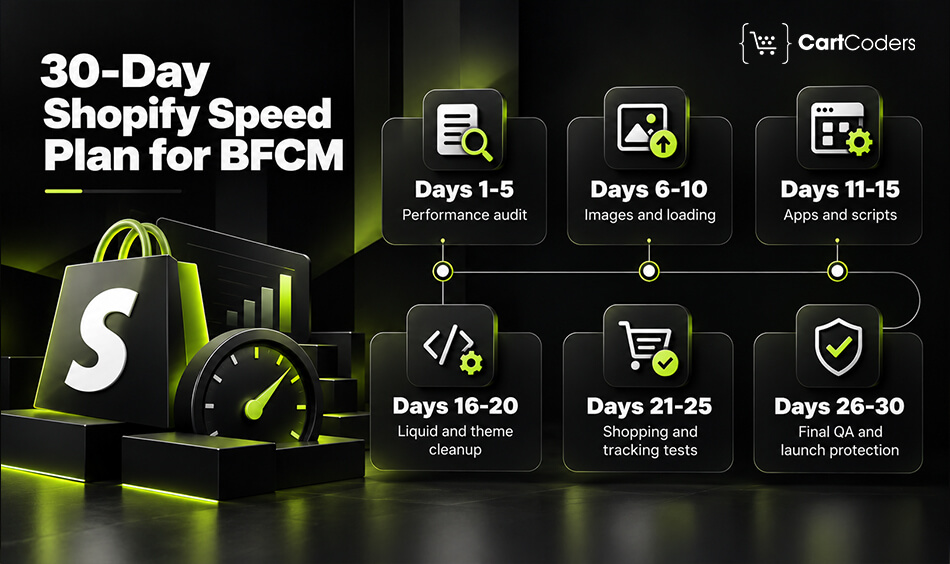
You don’t need to fix every performance issue before Black Friday. You need to address the problems most likely to affect shopping and complete the work without introducing new errors.
The following plan divides the work into six manageable phases.
Days 1–5: Audit Speed and Identify Revenue-Critical Pages
Use Shopify’s reports to identify page types or URLs with weak LCP, INP, or CLS results. Then run lab tests on a consistent device profile and network setting. Test one representative page from each important template, including a product with several variants and a collection with filters. Recheck the pages that receive the most campaign traffic.
Describe each issue in plain language. Record the affected page, evidence, likely cause, business impact, proposed change, owner, and risk. Sort by customer impact and effort. A broken mobile menu or delayed add-to-cart action should come before a minor issue on a low-traffic page.
Days 6–10: Fix LCP Images and Render-Blocking Resources
Images often account for much of the content a browser must download. Resize oversized source images, use Shopify’s image transformation features where appropriate, and serve a suitable size for the space the image occupies. Compress files without making product details difficult to inspect. Check the hero and first product image on mobile as well as desktop.
Do not lazy-load the image that forms the main visible content at the top of the page. Lazy loading tells the browser to wait before requesting an image; that can delay LCP when applied to the hero or first product image. Shopify’s theme guidance recommends loading important images early and lazy-loading images that sit below the initial viewport. Give images explicit width and height, or use a stable aspect ratio, so the page reserves space before they load.
Review fonts, video backgrounds, and animations. Keep only the font weights the store uses. For campaign videos, use a poster image with a play button to avoid loading large video files on every visit. Also, review image delivery and mobile performance to make your Shopify store load faster.
Days 11–17: Review Apps, Scripts, and Theme Code
Create an inventory of installed apps, theme app extensions, pixels, tag manager entries, chat tools, review widgets, and custom scripts. Ask what each item does, where it appears, who owns it, and whether the campaign needs it. Remove an app only after checking whether it added code, snippets, app embeds, or scripts that remain after uninstalling.
A script can affect speed even when its visible feature sits below the fold. First check whether the tool is still needed. If it remains necessary, check whether it can load only on relevant templates or after a visitor action. Shopify documents ways to defer non-critical JavaScript and load some features on interaction. Check dependencies before changing payment, consent, accessibility, security, inventory, or required analytics code.
Inspect the theme’s JavaScript and CSS for duplicate libraries, unused files, and render-blocking resources. Use browser developer tools or Lighthouse’s treemap and coverage tools to identify assets that add substantial code but contribute little to the initial page. Shopify’s theme performance guidance also recommends measuring script impact instead of guessing which file is responsible.
Review Liquid code where a page renders slowly. Repeated work inside nested loops, repeated filter calls, or unnecessary snippet renders can add server-side time on complex templates. Shopify provides Liquid performance patterns and suggests measuring Liquid rendering time before and after changes. If a measured issue calls for code changes to the storefront, Shopify custom theme development may be relevant. Avoid broad rewrites late in the schedule. Make one focused change, compare the same page, and keep it only when the result and behavior improve.
Days 18–23: Improve Interactions and Visual Stability
INP problems often appear when the browser has too much JavaScript to process during a shopper’s action. Test the menu, variant selector, collection filters, search, add-to-cart button, cart drawer, and discount interactions on a real mobile device. Record whether the screen responds promptly after each tap. If it does not, profile the interaction to find long tasks or scripts running at the same time.
CLS problems can come from images without reserved dimensions, banners inserted after the page appears, late-loading fonts, or app widgets that push content down. Reserve space for banners and embedded features. Avoid adding a countdown or signup popup immediately over the purchase controls. If a popup is necessary, test its timing, close action, keyboard behavior, and display on smaller screens.
Check the purchase path from a campaign link to a completed test order. Confirm product options, discount codes, cart updates, shipping details, payment handoff, and confirmation tracking. If your store uses accelerated checkout or custom cart behavior, test those flows too. Speed work has value only when shoppers can still choose and buy the right product.
Days 24–27: Test Storefront UX and Conversion Tracking
Make code changes in a duplicate theme or staging environment. Compare the same page templates before and after the update, using the same device profile and test conditions. Recheck visual layout, accessibility, cookie consent, search, filters, product variants, carts, discount codes, and analytics events. Include common browsers and smaller mobile screens in the review.
Release in a controlled window with a named owner watching key pages. Keep a copy of the previous theme and write down how to restore it. For a larger change, release in smaller steps so the team can identify which update caused a regression. If a new issue appears, restore the stable theme first, then investigate outside the high-traffic period.
Days 28–30: Freeze Risky Changes and Complete BFCM Checks
Limit late changes to fixes that address a clear customer or sales problem and have passed testing. Avoid changing themes, adding several apps, or rewriting major templates just before the sale. Confirm that promotion schedules, inventory, shipping messages, and checkout settings match the campaign plan.
Monitor real-user reports, storefront errors, cart behavior, and support messages. Use lab tests and functional checks for immediate signals while field metrics catch up. Keep the theme recovery owner available during launch. Regular Shopify support and maintenance can also include ongoing storefront checks after the sale.
How Do You Improve Shopify Core Web Vitals Before Black Friday?
Core Web Vitals tell you where visitors may experience loading delays, slow interactions, or unexpected movement on the page. Each metric needs a different technical approach.
Improve LCP by Prioritizing Hero and Product Images
Largest Contentful Paint measures when the largest visible content element finishes rendering. On Shopify, this may be a homepage banner, product image, or prominent text block. If the LCP element is an image, check whether the theme loads it too late. Useful fixes include serving responsive image sizes, avoiding lazy loading for the above-the-fold LCP image, and applying high fetch priority when appropriate.
Shopify’s image_tag and image_url Liquid filters can help developers generate suitable image markup. Do not apply high priority to every image. Reserve it for the resources that matter most during initial rendering.
Improve INP by Reducing Heavy JavaScript
Interaction to Next Paint measures responsiveness when visitors interact with a page. Think about a customer choosing a product size or clicking Add to Cart. If the browser is busy running large JavaScript tasks, the interface may respond slowly.
Investigate product option selectors, cart drawers, search tools, popup scripts, and third-party applications. Reduce unnecessary work on the main thread and break up long tasks where appropriate.
Reduce CLS From Images, Banners, and App Widgets
Cumulative Layout Shift measures unexpected movement of visible content. A promotional bar that appears after the page loads can push everything downward. A product image without reserved dimensions can create a similar problem.
Set image dimensions or aspect ratios, reserve appropriate space for embedded content, and avoid inserting promotional elements above existing content without planning the layout.
Check TTFB and FCP When Pages Still Load Slowly
Time to First Byte (TTFB) helps indicate how quickly the initial server response arrives. First Contentful Paint (FCP) measures when the browser first displays visible content.
If pages remain slow after image fixes, investigate server-response diagnostics, Liquid rendering, stylesheets, and JavaScript that blocks rendering.
Use Shopify’s theme performance best practices to guide technical reviews.
| Performance Problem | Possible Fix | Main Metric |
| Lazy-loaded hero image | Give the LCP image suitable loading priority | LCP |
| Oversized product image | Serve responsive image sizes | LCP |
| Heavy third-party JavaScript | Remove or delay nonessential work | INP, LCP |
| Popup shifts content | Reserve space or change display behavior | CLS |
| Image without dimensions | Add dimensions or aspect ratio | CLS |
| Complex Liquid loops | Simplify and measure rendering | TTFB |
| Render-blocking styles | Review critical CSS delivery | FCP, LCP |
What Should You Remove or Fix in Your Shopify Theme Before BFCM?
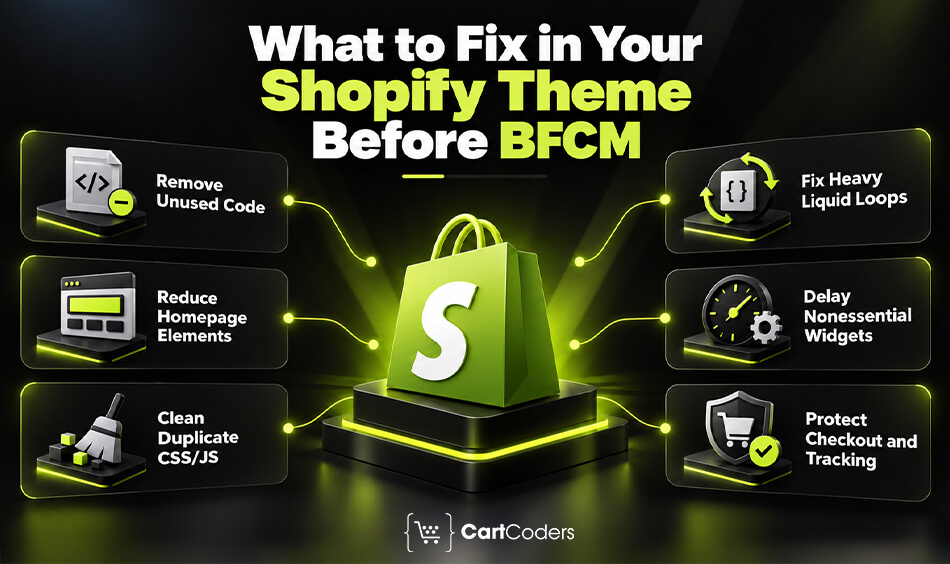
Black Friday preparation often adds more code to a store. Discount widgets, countdown timers, promotional popups, and campaign tracking can all increase the amount of work a browser performs. But removing everything is not the answer. The goal is to remove code that no longer serves a purpose while protecting features customers need to buy.
Remove Unused App Code and Old Campaign Scripts
Look for app embeds that are disabled but still referenced in the theme, old seasonal widgets, and scripts from previous campaigns. Some uninstalled apps may leave code behind. Review these changes carefully rather than deleting unfamiliar files.
Reduce Unnecessary Homepage Sections and Animations
A homepage with several autoplay videos, moving banners, and animated product sections may demand more resources than necessary. Keep content that helps customers find products or understand offers. Reduce decorative elements that add loading cost without clear value.
Clean Up Duplicate JavaScript and CSS
Check whether the same library, tracking tag, or stylesheet loads more than once. Duplicate scripts can increase network requests and processing work. However, removal should follow dependency checks so important functions remain intact.
Review Heavy Liquid Loops and Unused Snippets
Inspect repeated product loops, nested collection logic, and snippets that render unnecessary data. Use profiling and controlled testing to identify costly code before changing it.
Delay Nonessential Widgets Without Breaking Store Functions
Chat widgets, recommendation tools, and promotional components may not all need to load immediately. Review whether their scripts can load after critical content without affecting the customer experience.
Keep Checkout, Analytics, and Critical Purchase Features Working
Do not remove essential discount logic, product selection features, cart integrations, or tracking simply to improve a Lighthouse score. Test each change against real shopping scenarios.
| Theme Element | Recommended Decision |
| Unused app embed | Disable and test |
| Old seasonal popup | Remove if no longer needed |
| Duplicate analytics script | Investigate and correct duplication |
| Heavy animation | Reduce if it delays content |
| Customer reviews | Keep if useful; review loading |
| Product recommendations | Compare performance cost with business value |
| Discount functionality | Retain and test |
| Cart and checkout integration | Preserve and regression-test |
Which Shopify Speed Fixes Should You Prioritize When Time Is Limited?
With Black Friday approaching, prioritize changes that address a clear problem and can be released safely. A major theme replacement may produce larger changes, but it also introduces more opportunities for something to break. Start with problems you can measure and validate quickly.
Fix High-Impact Issues With Low Release Risk First
Incorrect hero-image loading, oversized images, and unnecessary third-party requests may be good early candidates. More complex changes, such as rebuilding Liquid templates or replacing the theme, require additional testing.
Prioritize Mobile Product Pages and BFCM Landing Pages
Focus on pages receiving important search, email, and paid traffic. If mobile shoppers struggle to select a variant or use the cart, that issue deserves attention before a minor homepage animation.
Delay Major Theme Rebuilds and Unnecessary New Features
Unless a serious issue makes the existing theme unsuitable, consider scheduling large structural changes after the promotional period.
| Issue | Potential Impact | Release Risk | Suggested Priority |
| Incorrect LCP image loading | High | Low to medium | Fix first |
| Oversized hero images | High | Low to medium | Fix first |
| Unused third-party script | Medium to high | Medium | Early |
| Duplicate CSS or JavaScript | Varies | Medium | After verification |
| Complex Liquid refactor | Varies | Medium to high | Test carefully |
| Full theme replacement | Potentially high | High | Usually defer |
| New animation-heavy promotion | Uncertain | Medium | Avoid without testing |
These are general planning priorities. Your store’s audit results should determine the final order.

How Should You Test Shopify Speed Without Breaking BFCM Sales?
Improving a performance score is only useful when the store still works correctly. A script change that improves loading time but breaks Add to Cart can create a much bigger problem during Black Friday. Test performance and shopping functionality together.
Duplicate the Live Theme Before Editing
Create a duplicate of your published Shopify theme before making code changes. Use this copy for development and testing. Keep a record of changed files, installed apps, and affected templates.
Remember that a duplicate theme does not copy every external app setting or Shopify configuration. Some changes may affect the live store even when you are editing an unpublished theme.
Compare Baseline and Updated Performance
Run tests on the same URLs before and after each major change. Use similar device settings and network conditions to make comparisons more meaningful. Check PageSpeed Insights and Lighthouse for immediate diagnostics.
Use Shopify Web Performance reports and field data to monitor actual customer experiences over time. Google’s Core Web Vitals field reporting commonly uses a rolling 28-day period. Improvements may appear in laboratory tests before they become fully visible in field reports.
Test Product Variants, Cart, Discounts, and Checkout
Check the entire purchase journey, not just the page load. Select product variants, add products to the cart, update quantities, apply discounts, and complete a test order using an appropriate Shopify testing method.
Pay particular attention to promotional combinations such as automatic discounts, free shipping thresholds, and bundle offers.
Verify GA4, Meta Pixel, and Conversion Events
Removing duplicate scripts or changing app loading behavior may affect conversion tracking. Use GA4 DebugView, Meta Events Manager, and the appropriate tag debugging tools to confirm that events still arrive with correct parameters.
For example, verify that purchase events include the correct transaction ID, currency, and value. Where browser and server events are both used, check deduplication.
Check Mobile Usability and Accessibility
Test on actual mobile devices where possible. Review navigation menus, product options, sticky Add to Cart buttons, popup closing controls, and checkout links.
A mobile page should remain readable and usable even when promotional content is added.
Prepare a Recovery Plan Before Publishing
Record the last working theme version and document how to restore it if a release fails. Assign responsibility for deployment, testing, and emergency fixes.
| Test Area | Pass Criteria |
| Homepage | Promotional content displays correctly |
| Product page | Variants, prices, inventory, and Add to Cart work |
| Collection page | Filters, sorting, and navigation function |
| Discounts | BFCM offers apply as expected |
| Cart | Quantities, prices, upsells, and totals remain correct |
| Checkout | Test purchase completes successfully |
| Tracking | Required events and values arrive correctly |
| Mobile | No major layout or interaction problems |
| Performance | No significant regression under comparable test conditions |
What Should Shopify Merchants Do in the Final 48 Hours Before BFCM?
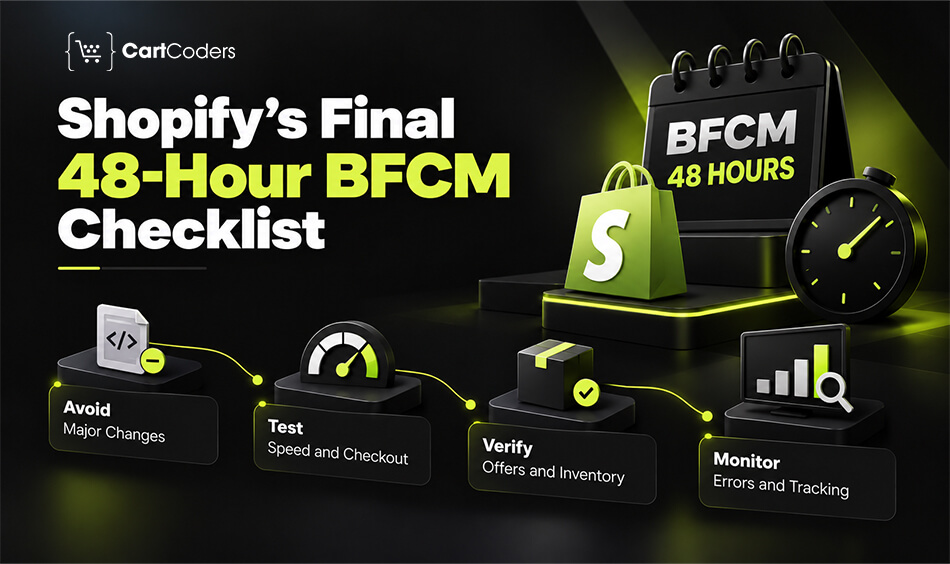
The last two days before Black Friday are not the time to introduce an entirely new storefront experience. Focus on confirming that approved changes work and that the team can respond quickly if something goes wrong.
Avoid Major Theme and App Changes
Freeze nonessential releases. Allow only urgent fixes that have been tested and approved.
Check Live Speed, Cart, and Checkout
Review key mobile landing pages, product pages, cart interactions, and checkout progression.
Confirm Promotional Banners, Discounts, and Inventory
Check sale dates, discount eligibility, product availability, and messaging across the storefront.
Monitor Errors, Tracking, and Store Performance
Watch for JavaScript errors, failed requests, broken customer interactions, and missing conversion events.
Use this final readiness checklist:
| Final BFCM Check | Status |
| Main landing pages and mobile product pages tested | Ready / Needs attention |
| Promotional discounts verified | Ready / Needs attention |
| Critical apps working | Ready / Needs attention |
| Conversion tracking checked | Ready / Needs attention |
| Theme recovery plan confirmed | Ready / Needs attention |
| Responsible team members available | Ready / Needs attention |
How CartCoders Helps Shopify Stores Prepare for BFCM Traffic
When Black Friday is close, merchants need technical changes that solve real performance problems without putting sales functionality at risk. CartCoders supports Shopify businesses with storefront development, theme customization, app-related improvements, and technical reviews.
Our team can help identify slow-loading sections, review unnecessary scripts, investigate Core Web Vitals issues, and test important shopping workflows. Whether your store needs a targeted theme cleanup or more involved Shopify Plus development, the priority is making changes that support the shopping experience while keeping the storefront reliable.
Final Verdict: Fix the Biggest Shopify Speed Risks Before BFCM
With Black Friday approaching, focus on the performance issues that affect real shopping experiences. Start with mobile Core Web Vitals, fix critical image-loading problems, review unnecessary JavaScript, and clean up theme code where testing shows a clear benefit.
Then confirm that product selection, discounts, cart actions, checkout, and conversion tracking still work. A successful BFCM speed plan is not simply about getting a higher Lighthouse score. It is about giving customers a responsive, reliable store when they are ready to purchase.
Frequently Asked Questions
Start with a Core Web Vitals audit, then prioritize slow images, unnecessary scripts, and heavy theme sections. Test changes on a duplicate theme before publishing.
Google considers LCP of 2.5 seconds or less, INP of 200 milliseconds or less, and CLS of 0.1 or less good. These are general thresholds, not BFCM-specific standards.
Apps that load heavy JavaScript, render-blocking resources, or unnecessary widgets may affect performance. Review actual script activity rather than assuming a particular app category is always slow.
Identify the LCP element first. If it is an image, check loading priority, responsive sizes, and render-blocking resources. Avoid lazy loading the main above-the-fold image.
Yes, when an app adds unnecessary storefront resources. However, uninstalling an app does not always remove leftover theme code. Test carefully before deleting scripts or snippets.
Review unused app embeds, outdated promotional scripts, duplicate assets, and unnecessary animations. Keep essential shopping, discount, and analytics functionality working.
Many targeted improvements can be completed within 30 days, depending on the store’s complexity. A full theme rebuild or major architectural change may require more time.
Usually not without a strong reason and thorough testing. A complete theme change can affect product pages, apps, discounts, tracking, and checkout-related workflows.


