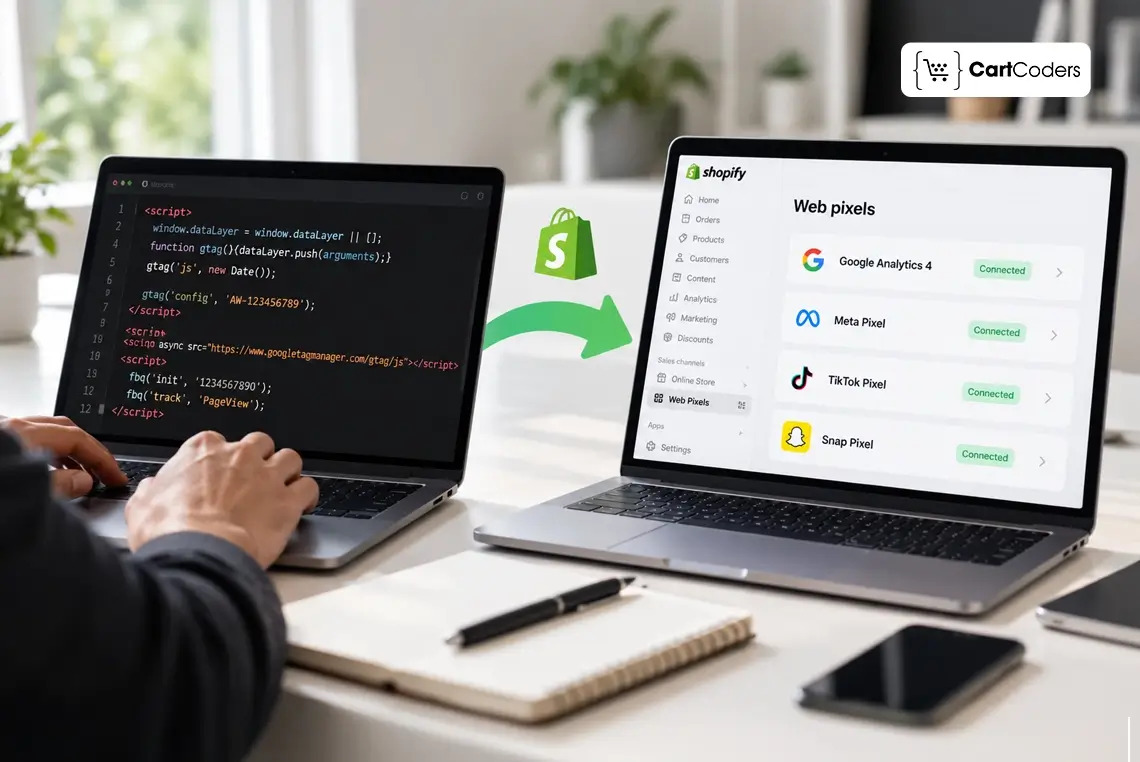

A Shopify store can appear to work perfectly while its conversion tracking quietly stops collecting important data. Orders still come through, customers still check out, but Google Analytics 4 (GA4) or Meta Ads may show fewer purchases than expected. For stores using legacy Shopify ScriptTags, this risk is becoming more relevant.
Shopify has already stopped ScriptTag execution on the Order status page. Apps can no longer create or update ScriptTags, and storefront ScriptTags are scheduled to stop running on March 1, 2027. According to Shopify’s ScriptTag deprecation documentation, analytics tracking should move to supported pixel solutions. Scripts that add storefront features require a different replacement.
To migrate Shopify script tags to the Web Pixels API, identify existing tracking scripts, map their events to Shopify customer events, choose an app or custom pixel, rebuild tracking subscriptions, configure consent, and test the results before removing legacy code. The important part is not simply installing a new pixel. It is preserving useful tracking without sending duplicate events or losing data during the transition.
Why Shopify Script Tag Migration Matters Before March 2027
Shopify is retiring the legacy ScriptTag mechanism in stages. Businesses still using it for analytics, advertising pixels, or custom event tracking should review their implementations before the final storefront deadline.
| Shopify Change | Date | What It Means |
| ScriptTags stop on Order status pages | August 26, 2026 | Legacy order-status tracking needs replacement |
| Apps cannot create or update ScriptTags | October 1, 2026 | New or modified ScriptTag-based app installations are restricted |
| Storefront ScriptTags stop running | March 1, 2027 | Remaining ScriptTag-based storefront tracking needs migration |
These dates concern Shopify’s ScriptTag API mechanism, not every JavaScript file or HTML script element used by a Shopify theme.
For example, a custom script inside theme.liquid is not automatically removed because ScriptTags are deprecated. However, that script may still need review for privacy, compatibility, or maintenance reasons. The first task is identifying how each script was installed and what it actually does. Shopify’s wider changes to legacy app workflows also make it useful to review how Shopify custom apps are changing before rebuilding older tracking integrations.
Which Shopify Script Tags Should Move to Web Pixels API?
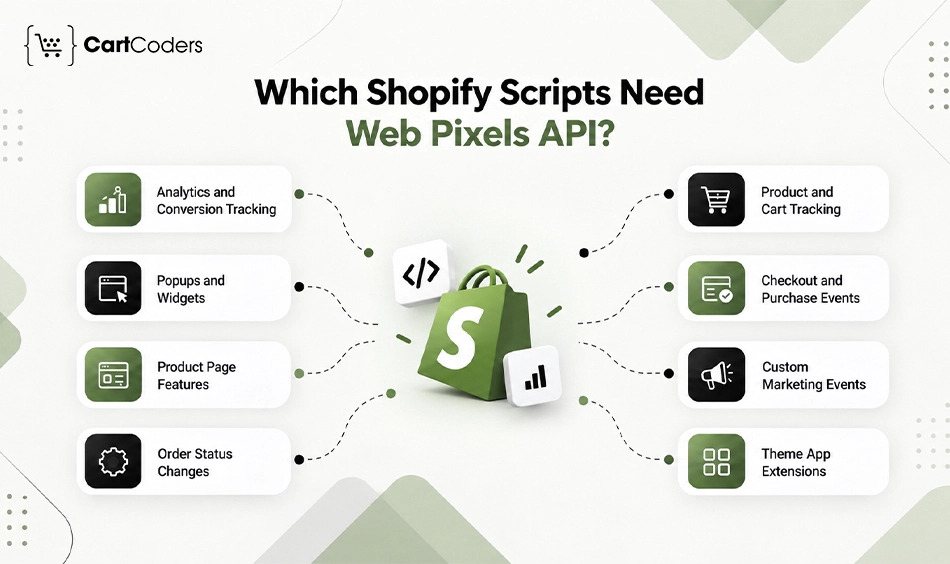
Not every legacy script belongs inside the Web Pixels API. The correct replacement depends on whether the script collects customer activity data or changes the storefront interface.
Analytics and Conversion Tracking Scripts
Scripts sending page views, product activity, or conversion information to analytics platforms are suitable candidates for Web Pixels API migration. These can subscribe to Shopify customer events instead of relying on legacy ScriptTag execution.
Product View and Add-to-Cart Tracking
Tracking scripts that record product views or cart additions can use Shopify’s standard customer events. This reduces the need to create separate browser listeners for common shopping actions.
Checkout and Purchase Event Tracking
Checkout-related analytics should use supported customer events, such as checkout_started and checkout_completed. Merchants must still check event data, consent requirements, and compatibility with their reporting platforms.
Custom Marketing Event Scripts
Some stores track actions such as clicking a size guide, opening a product comparison, or using a fit recommendation tool. These interactions may require custom event publishing alongside the Web Pixels API.
Storefront Scripts That Need Theme App Extensions Instead
Scripts that display popups, floating buttons, or interactive product features are not ordinary analytics pixels. These should be assessed for migration to theme app blocks, app embeds, or another supported Shopify extension.
Popups and Floating Widgets
Scripts that display chat bubbles, consent banners, floating buttons, or promotional popups should use theme app embeds. App embeds suit elements that appear over storefront content or work across multiple pages. Merchants can activate, deactivate, and configure them through the theme editor.
Product Page Interface Features
Product reviews, size charts, product badges, comparison tools, and other visible page features should use theme app blocks. Merchants can place and manage these blocks through compatible theme sections without editing Liquid files directly.
Order Status Interface Changes
Scripts that add tracking details, loyalty information, product care instructions, or post-purchase offers to the order status page need a different approach. Where Shopify supports the required placement, developers should rebuild them with customer account UI extensions rather than Web Pixels API. This keeps post-purchase interface changes separate from analytics tracking.
| Legacy Script Function | Recommended Replacement |
| Page views and product tracking | Web Pixels API |
| Add-to-cart analytics | Web Pixels API |
| Checkout conversion tracking | Web Pixels API |
| Custom marketing interactions | Custom customer events and pixel subscriptions |
| Popups and floating widgets | Theme app embeds |
| Product page interface features | Theme app blocks |
| Order status interface changes | Customer account UI extensions, where supported |
Stores with several app-based features may need additional Shopify integration services to separate tracking scripts from storefront functionality.

Shopify Script Tags vs Web Pixels API: What Changes?
Legacy ScriptTags and Shopify’s Web Pixels API use different tracking approaches. ScriptTags load JavaScript into the storefront. Web pixels receive events through Shopify’s customer event system.
| Area | Legacy ScriptTags | Shopify Web Pixels API | Why It Matters |
| Tracking method | Injects JavaScript into storefront pages | Subscribes to Shopify customer events | Event subscriptions provide a more structured tracking method |
| Storefront access | Can access browser objects and page elements directly | Runs within a controlled sandbox | Existing scripts may need new logic because direct page access is restricted |
| Event collection | Often requires custom code for each customer action | Uses Shopify standard and custom events | Standard events reduce inconsistent tracking across store pages |
| Checkout tracking | Depends on script placement and checkout access | Receives supported checkout and purchase events | Stores can track key checkout actions through Shopify’s event system |
| Privacy controls | Consent handling depends on the implementation | Connects with Shopify’s customer privacy framework | Pixel activity can follow configured consent requirements |
| Code maintenance | Theme or storefront changes may break selectors and scripts | Event subscriptions rely less on page structure | Tracking becomes less dependent on theme elements and DOM changes |
| App integration | Commonly added through ScriptTag resources | Managed through web pixel extensions | App developers must rebuild legacy tracking for the supported pixel model |
| Testing method | Checked through storefront scripts and browser activity | Tested through subscribed events and pixel tools | Teams must validate event payloads, consent states, and order values |
| Migration impact | Existing code may rely on unavailable browser access | Code must follow sandbox and event API rules | Direct code copying will not work for many ScriptTag implementations |
| Platform direction | Deprecated for analytics tracking | Shopify’s supported analytics approach | Moving early reduces the risk of tracking gaps after legacy support changes |
Shopify App Pixels vs Custom Pixels: Which Should You Choose?
Shopify offers different ways to implement event tracking. The right option depends on who maintains the integration and which platforms receive the data.
| Comparison Point | Shopify App Pixels | Shopify Custom Pixels |
| Best suited for | Reusable tracking integrations created for multiple Shopify merchants. | Store-specific tracking when no suitable app integration exists. |
| Who creates it | A Shopify app developer builds it through a web pixel app extension. | A merchant or developer adds it through the Customer Events area in Shopify Admin. |
| Who maintains it | The app developer manages code changes, event handling, and version updates. | The store owner or assigned developer manages testing, changes, and maintenance. |
| Installation method | The pixel becomes available when the merchant installs and configures the app. | The pixel code is added directly to an individual Shopify store. |
| Sandbox type | Runs in Shopify’s strict sandbox with controlled access to browser features. | Runs in a lax sandbox, but still cannot access all storefront browser objects freely. |
| Event tracking | Can subscribe to Shopify standard events and events required by the app. | Can subscribe to standard events and selected custom events for that store. |
| Storefront access | Cannot directly inspect or change page elements through unrestricted window or document access. | Offers more flexibility than an app pixel, but direct storefront access remains restricted. |
| Distribution | One app can provide the same tracking integration across many merchant stores. | The implementation applies only to the store where the pixel is created. |
| Merchant control | Merchants manage the app, while the developer controls the underlying pixel code. | Merchants have direct access to the pixel code and can edit or disconnect it. |
| Updates | The developer can release updates through the app without rebuilding each store’s pixel separately. | Each store must update and retest its custom pixel when requirements change. |
| Privacy settings | The app declares its data collection purposes and works with Shopify’s customer privacy framework. | The merchant selects the relevant privacy categories and remains responsible for correct configuration. |
| Testing needs | Developers should test installation, consent states, event payloads, and platform reporting across supported stores. | Merchants should test event firing, consent behavior, order values, and duplicate conversions on their store. |
| Main benefit | Offers a maintainable option for developers providing tracking as part of a Shopify app. | Gives merchants control over tracking created for their specific reporting needs. |
| Main limitation | Requires app extension development and compliance with strict sandbox rules. | Places code quality, testing, privacy settings, and future maintenance on the merchant’s team. |
| Choose this option when | You are building or using an app that manages tracking across multiple stores. | You need a store-specific integration that an official channel or existing app does not support. |
How to Migrate Shopify Script Tags to Web Pixels API Step by Step
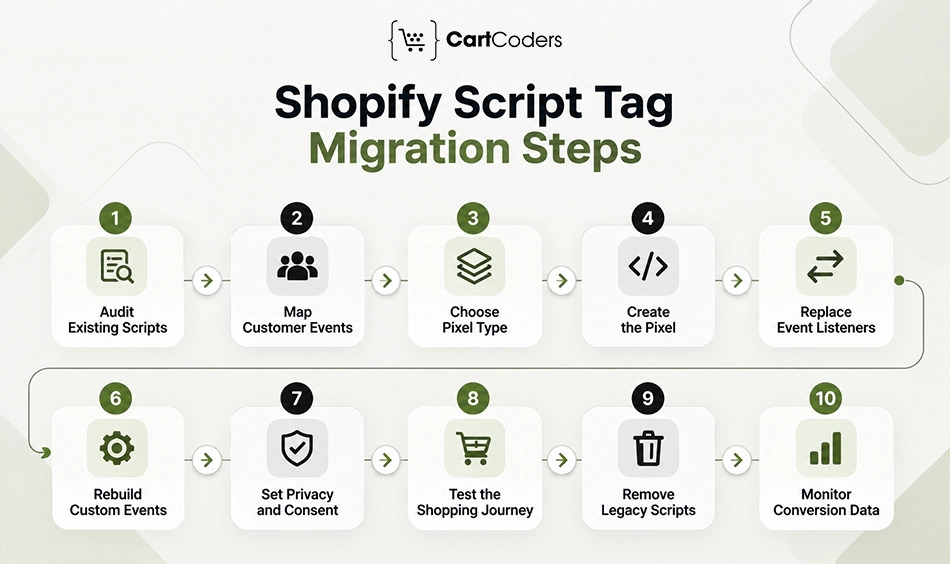
A reliable migration starts with understanding the current tracking setup. Removing old scripts before checking their replacements can create missing data. Running both implementations without planning can create duplicate events. The following process helps reduce both risks.
Step 1: Audit Existing Shopify Script Tags
Start by listing every tracking implementation currently connected to the store. Review ScriptTags created through apps, theme files, customer event settings, existing channels integrations, and any older checkout tracking configurations. For each script, record its purpose and where it sends information.
Useful details include the tracking platform, script owner, event names, installation method, and whether the script is still active. Do not assume every JavaScript snippet is a ScriptTag. Code inside a theme and code injected through the ScriptTag API may need different migration approaches.
Step 2: Map Legacy Tracking to Shopify Customer Events
Next, identify the Shopify customer event that corresponds to each existing tracking action. Shopify publishes standard events for common shopping interactions.
| Existing Tracking Action | Shopify Customer Event |
| Page viewed | page_viewed |
| Product viewed | product_viewed |
| Product added to cart | product_added_to_cart |
| Cart viewed | cart_viewed |
| Checkout started | checkout_started |
| Shipping information submitted | checkout_shipping_info_submitted |
| Payment information submitted | payment_info_submitted |
| Checkout completed | checkout_completed |
| Business-specific interaction | Custom customer event |
Use Shopify’s standard events reference to review event availability and payload structures. A useful mapping document should include the old event, the Shopify replacement, required parameters, and the receiving platform. For example, a product-view event sent to GA4 may require a product identifier, name, currency, and value. These fields must be mapped from the available Shopify event data.
Step 3: Select the Right Pixel Implementation
Choose the replacement based on the tracking requirement. Use an official channel integration when it already supports the necessary events. Choose an app pixel when tracking is maintained through a Shopify app.
Use a custom pixel for a merchant-specific implementation that needs custom event handling. Also consider consent settings, ongoing maintenance, and whether the receiving platform requires a particular event format. Store-specific tracking sometimes becomes part of a larger custom Shopify app when the business also needs custom workflows or connections with external systems.
Step 4: Create the App Pixel Extension or Custom Pixel
The setup process differs depending on the selected implementation. For an app pixel, developers generally create a web pixel app extension using Shopify CLI, add the required event subscriptions, configure permissions, and activate the extension through the supported app workflow. Shopify’s documented implementation uses API scopes such as write_pixels and read_customer_events.
For a custom pixel, open Shopify Admin and go to:
Settings → Customer events → Add custom pixel
Add the tracking code, review customer privacy settings, and connect the pixel. Before adding custom code, check whether another app already sends the same events.
Step 5: Replace Legacy Event Listeners With analytics.subscribe()
The Web Pixels API uses event subscriptions rather than requiring each integration to detect common storefront actions manually.
For example, the following simplified custom pixel code listens for product views and completed checkouts.
| analytics.subscribe(“product_viewed”, (event) => { const variant = event.data?.productVariant; console.log(“Product viewed:”, { eventId: event.id, variantId: variant?.id, productId: variant?.product?.id });}); analytics.subscribe(“checkout_completed”, (event) => { const checkout = event.data?.checkout; console.log(“Checkout completed:”, { eventId: event.id, orderId: checkout?.order?.id, totalPrice: checkout?.totalPrice?.amount, currency: checkout?.currencyCode });}); |
This example demonstrates event subscriptions and basic data extraction. It does not send events to GA4 or Meta. For production tracking, developers must map Shopify’s event payload into the receiving platform’s required format, handle unavailable fields, and respect customer consent.
Avoid copying an older tracking snippet directly into a pixel. Browser APIs and third-party libraries may behave differently inside the sandbox.
Step 6: Rebuild Custom Events Where Needed
Standard Shopify events cover many common shopping activities, but not every business-specific interaction. For example, a merchant may want to track when a customer opens a sizing guide or completes a product recommendation quiz. Developers can publish a custom storefront event using Shopify’s analytics publishing interface, then subscribe to that event inside the pixel.
The event name should be specific to the action and should not reuse a reserved Shopify standard event name. Test the publishing method in the relevant storefront context before relying on it for reporting.
Step 7: Configure Customer Privacy and Consent
Tracking migration must account for privacy settings. Review Shopify’s customer privacy configuration, consent banner, third-party consent management platform, and the data-sharing categories required by each pixel. A pixel may be connected correctly but still not receive events when consent requirements have not been met.
Test scenarios where customers accept tracking, reject tracking, or change their preferences. Privacy requirements vary by location and the type of information collected. Technical configuration should reflect the merchant’s applicable obligations.
Step 8: Test the New Pixel Across the Shopping Journey
Once the pixel is connected, test the events that matter to the business. Open a product page, add an item to the cart, begin checkout, and complete a suitable test purchase. Use Shopify Pixel Helper, browser developer tools, and the receiving platform’s debugging tools.
Check whether each event fires at the expected point and contains the required parameters. For purchase tracking, review the event identifier, order reference where available, currency, and total value. Also test on mobile devices and under different consent conditions. A wider Shopify GA4 tracking audit can also help identify missing ecommerce events, incorrect parameters, duplicate tracking, and gaps between Shopify and GA4 reporting.
Step 9: Remove Legacy Script Tags and Duplicate Tracking
Do not remove the old tracking implementation until the replacement has been tested. Plan a controlled cutover so the store does not run two independent purchase-tracking implementations longer than necessary. Check whether the same events are also being sent by official channel apps, theme code, or third-party integrations.
Duplicate purchase events can affect advertising reports and campaign decisions. Shopify’s pixel migration guidance discusses the trade-off between temporary duplicate tracking and a gap in collected data.
Step 10: Monitor Conversion Data After Migration
Testing does not end when the new pixel starts sending events. Review the first several days of tracking for missing purchases, repeated events, incorrect values, and unexpected changes in event volume.
Compare Shopify orders with GA4 and advertising-platform reports while accounting for attribution, consent, and reporting differences. Document the final event mapping, pixel ownership, and maintenance process. This helps future developers understand how tracking is configured.
How Does Web Pixels API Track Shopify Checkout Events?
Checkout tracking is one of the most important parts of the migration because purchase data affects marketing reports and advertising decisions. Shopify publishes customer events during supported checkout interactions.
Tracking Checkout Start
The checkout_started event can indicate that a customer has begun the checkout process. Developers should map this event to the appropriate destination, such as GA4’s begin_checkout event.
Tracking Checkout Progression
Events such as checkout_shipping_info_submitted and payment_info_submitted can provide information about checkout progression. Their availability and payloads should be reviewed against the store’s actual checkout configuration.
Tracking Completed Orders
The checkout_completed event is used for completed-checkout tracking. When sending purchase information to GA4 or Meta, check the event’s value, currency, identifiers, and the receiving platform’s requirements.
Preventing Duplicate Purchase Events
A store may send purchase events through an official channel app, a custom pixel, and an older tracking script. Review all active implementations before the migration cutover. When supported by the destination platform, use consistent transaction identifiers or event deduplication methods to reduce duplicate reporting.
Businesses with advanced checkout requirements may also need Shopify checkout extension development for interface-related functionality. Checkout extensions and web pixels serve different purposes.
Why Some Legacy Tracking Scripts Fail in the Web Pixels Sandbox
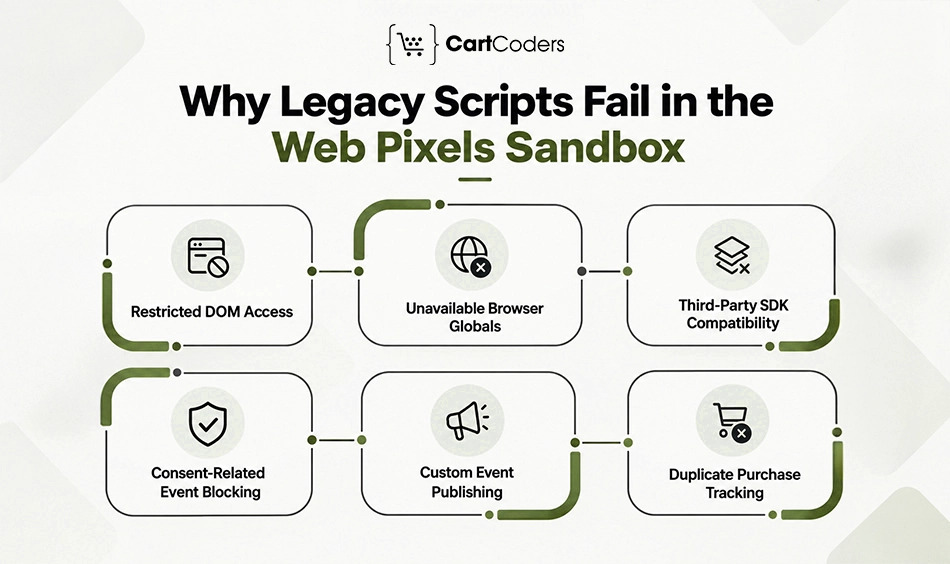
A script that works inside a Shopify theme may not work inside a web pixel. The reason is that web pixels run in restricted environments rather than having unrestricted access to the storefront.
Direct DOM Access Is Restricted
Some legacy scripts inspect HTML elements, read form fields, or listen for clicks directly through the document. That approach may not be available inside a web pixel. Use Shopify customer events when they provide the required information.
Some Browser Globals Are Unavailable
Developers should not assume that every browser object or API works inside a pixel sandbox. Check Shopify’s documented sandbox capabilities before selecting libraries or rewriting tracking code.
Third-Party JavaScript SDKs May Need Changes
Some analytics libraries depend on direct browser access, dynamic script loading, or other capabilities restricted by the pixel environment. An integration may need an alternative SDK, supported API, or different implementation. Third-party scripts can also affect storefront performance, so reviewing them alongside a Shopify Core Web Vitals audit can help separate tracking problems from wider JavaScript and loading issues.
Consent Settings Can Prevent Events From Firing
A missing event is not always a coding problem. Privacy configuration may prevent tracking until the required customer permission is available.
Custom Event Publishing May Be Required
If Shopify does not publish a standard event for a particular interaction, developers may need a supported custom event.
Duplicate Purchase Events Can Inflate Reporting
A purchase may be recorded twice when an app pixel, custom pixel, official channel app, or legacy script sends the same conversion. Review every active tracking method and compare event IDs, order details, and platform reports. Remove overlapping implementations only after confirming which connection should remain.
| Problem | Possible Next Step |
| Script reads page HTML directly | Use available Shopify event data |
| Browser object unavailable | Review sandbox-supported APIs |
| Third-party SDK fails | Use a compatible integration method |
| Events missing after consent changes | Test privacy configuration |
| Custom interaction not tracked | Publish and subscribe to a custom event |
| Purchase sent twice | Review all tracking implementations |
How to Validate GA4, Meta Pixel, and GTM Tracking After Migration
A connected pixel does not automatically mean reporting is accurate. Each analytics platform expects specific event names and parameters. These should be checked after migration.
Compare GA4 Event Names and Parameters
Shopify’s customer events do not use the same names as GA4 ecommerce events. For example, product_viewed may need to be mapped to view_item, while checkout_completed may need to be mapped to purchase. Check product identifiers, item arrays, values, and currency.
Verify Meta Purchase and Add-to-Cart Events
Use Meta Events Manager to review incoming events and required parameters. If the store also uses server-side tracking through Conversions API, check the deduplication strategy.
Review Google Tag Manager Compatibility
Do not assume an existing GTM container will run unchanged inside a Shopify custom pixel. Some tags and triggers depend on browser access that is restricted by the pixel sandbox. Review the required tracking architecture before migrating the container.
Check Event Deduplication and Consent
Test whether events are recorded once under normal conditions and whether consent choices are respected.
Monitor Tracking Differences After the Switch
GA4, Shopify, and Meta may report different totals because they use different attribution methods, event-processing rules, and privacy settings. The goal is to identify unexpected tracking errors, not force every platform to display identical numbers.
Confirm Page View Tracking Across Store Templates
Test page view events on the homepage, collections, product pages, cart, search results, and campaign pages. Check that each page records once and includes the correct URL, title, and page context. Single-page theme behavior or duplicate tracking scripts may create missing or repeated views.
Test Checkout Start Events With Real Shopping Paths
Add products to the cart and begin checkout from different entry points, including cart drawers and express buttons. Confirm the checkout event fires once with the correct products, quantities, value, and currency. Repeat the test for guest and returning customer journeys where relevant.
Shopify Web Pixels API Migration Checklist
Before removing legacy tracking, confirm that the new implementation has passed the necessary checks.
| Checkpoint | Required Verification |
| Legacy scripts | All relevant ScriptTags identified |
| Replacement path | Pixel or theme extension selected |
| Event mapping | Standard and custom events documented |
| Pixel connection | New pixel activated successfully |
| Privacy | Consent settings reviewed |
| Purchase tracking | Value, currency, and identifiers checked |
| Deduplication | Duplicate events addressed |
| Testing | Storefront and checkout journeys verified |
| Monitoring | Post-migration data reviewed |
| Ownership | Documentation and responsibilities assigned |
A wider Shopify technical audit can also identify tracking conflicts, theme dependencies, and other technical issues that may affect a store during changes.
When Should Merchants Use Shopify Developers for Pixel Migration?
Some merchants can move to a supported channel app without writing custom code. Developer assistance becomes more useful when tracking depends on custom events, several marketing platforms, or complex integrations.
Complex Custom Tracking Requirements
Stores tracking product configurators, recommendation tools, or custom shopping interactions may need event publishing and specialized data mapping.
Multiple Analytics Platforms and Marketing Channels
When several systems receive purchase data, developers can review event ownership and reduce duplicate implementations.
Shopify Plus or Custom Checkout Tracking
Advanced checkout requirements may involve several Shopify extension systems. Developers can help distinguish tracking needs from checkout interface customization.
Third-Party Consent and Data Integrations
Stores using consent management platforms or external data services may require additional testing.
App Pixel Extension Development
Merchants or app providers building reusable tracking integrations may need custom web pixel extensions. These projects require development, permissions, activation, testing, and ongoing maintenance. Reusable app pixels often comes within broader Shopify app development work involving extensions, permissions, event handling, and ongoing compatibility.
How CartCoders Helps With Shopify Script Tag Migration
Shopify’s ScriptTag changes can affect several parts of a store’s tracking setup. Migrating without reviewing existing integrations may create gaps or duplicate events. CartCoders supports Shopify merchants with legacy tracking audits, pixel migration planning, and custom implementation work.
Our Shopify development services cover technical requirements such as:
- Reviewing ScriptTags and existing analytics integrations
- Mapping legacy tracking to Shopify customer events
- Developing app pixels and custom event integrations
- Checking customer privacy and consent configurations
- Testing checkout and purchase tracking
- Reviewing duplicate events and reporting differences
- Supporting post-migration troubleshooting
The goal is to preserve useful tracking while moving away from deprecated Shopify mechanisms. Contact CartCoders to review your legacy tracking setup and plan the move to Web Pixels API before March 1, 2027.
Final Verdict: Migrate Tracking Scripts Before the 2027 Deadline
Shopify’s ScriptTag deprecation requires merchants to review how analytics and storefront scripts are installed. Analytics and conversion-tracking ScriptTags should move to supported pixel solutions. Scripts that change storefront functionality need a different replacement, such as theme app extensions.
The safest approach is to audit existing scripts, map customer events, configure privacy settings, and test the new implementation before removing legacy tracking. With a clear migration plan, businesses can reduce the risk of missing conversions, duplicate purchase events, and reporting problems as Shopify retires ScriptTags.
Frequently Asked Questions
Shopify ScriptTags stopped running on Order status pages in August 2026. Storefront ScriptTags are scheduled to stop running on March 1, 2027.
No. Web Pixels API replaces analytics and tracking implementations. Scripts that add storefront functionality generally need theme app extensions or another supported solution.
Audit the old tracking, map customer events, create a custom pixel in Shopify Admin, configure consent, test events, and remove the legacy script.
App pixels are developed through Shopify app extensions and run in a strict sandbox. Custom pixels are merchant-managed and run in a lax sandbox.
Yes. The checkout_completed event supports purchase-related tracking. Developers must map its data to the receiving platform and test the implementation.
Yes. Shopify customer events can be mapped to GA4 ecommerce events through a supported integration or a properly configured custom implementation.
Some GTM implementations may work, but browser restrictions can affect tags and triggers. Test compatibility rather than copying an existing container unchanged.
Missing events may result from consent settings, unsupported code, incorrect subscriptions, disconnected pixels, or differences in the customer’s shopping journey.
Review official channel apps, custom pixels, and legacy scripts. Use suitable transaction identifiers and platform-supported deduplication methods where applicable.
Consent requirements depend on the pixel’s privacy configuration and applicable regulations. Shopify’s customer privacy system can control when tracking is permitted.
Yes. Supported app pixels and custom pixels can be configured without manually inserting tracking code into the Shopify theme.
Use a theme app extension when a script adds or changes storefront interface elements. Web pixels are intended for customer event tracking.


