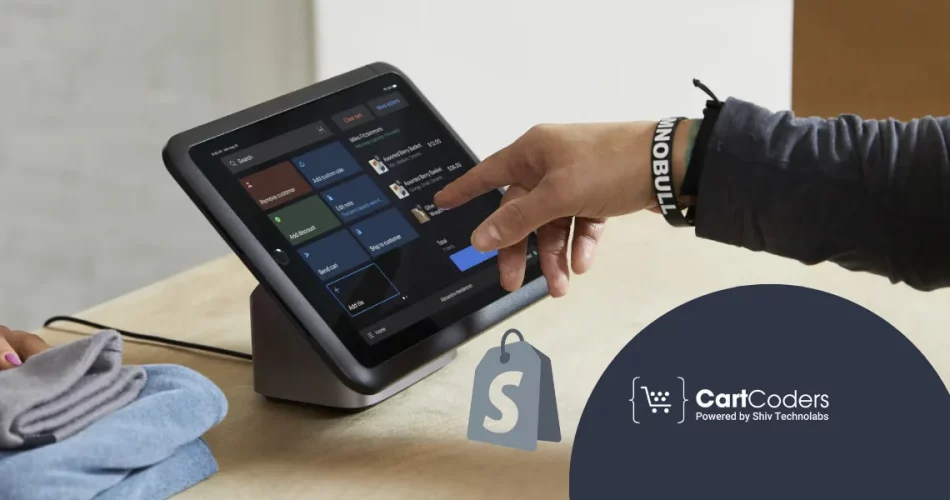

Are you the owner of a retail store thinking about setting up an online store as well? Shopify POS gives you an easy solution for that. It helps your online business and your storefront to be connected.
You can manage your customers, stock and sales numbers from one place. You can use the Shopify POS system to manage your store’s operations, no matter how big or small your business is.
Connect Your Storefront to Shopify POS
Sync online and in-store sales with smooth POS integration built for retail growth.


This guide will walk you through setting up Shopify POS step by step. Setting up your Shopify POS shouldn’t be hard, so let’s use these simple steps. Using this guide will make things easier and quicker.
What Is Shopify POS?
Shopify POS allows you to sell your products to people nearby. It functions with your Shopify online store. With one system, you can record payments, keep records of your inventory, and look after your customers.
There are two versions:
- Shopify POS Lite: Comes free with any Shopify plan.
- Shopify POS Pro: Offers advanced features for in-store selling.
Over 1.75 million businesses use Shopify. Many small shops choose it because it’s easy to use.
Benefits of Using Shopify POS for Retail
Here’s why using the Shopify POS system makes sense for your business:
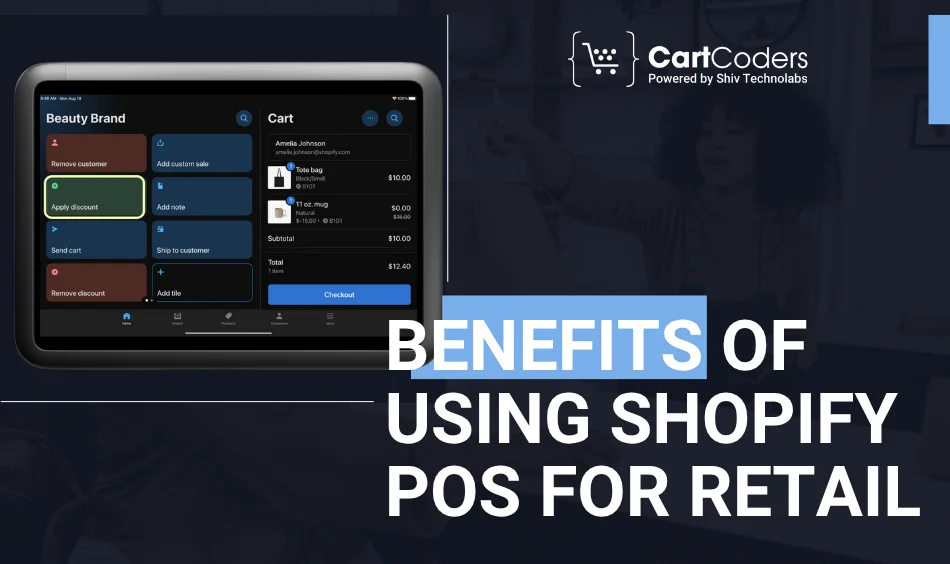
- Sell in-store and online from the same system
- Track inventory in real time
- Speed up checkout with barcode scanning
- Offer multiple payment options
- Create customer profiles for repeat sales
- Use one dashboard to manage everything
According to Shopify, stores using POS Pro saw 30% more repeat customers compared to those not using it.
Tools You Need Before You Start
Setting up Shopify POS is simple when you have the right tools in place. Here’s everything you need before you begin:
1. Shopify Account
Make a Shopify account by going to shopify.com and selecting the plan that fits your business. Even the least expensive plans are adequate for new small companies.
2. Shopify POS App
You should install the Shopify POS app on your phone if you have an iOS or Android device. You can use this app to sell at the store, check and scan products and process payments.
3. POS Hardware
You’ll need essential hardware like:
- Barcode Scanner
- Receipt Printer
- Card Reader
- Cash Drawer
Make sure all devices are compatible with the Shopify POS system.
4. Stable Internet Connection
To keep your sales, inventory and customer information linked between your stores, you need a stable internet connection.
5. Retail Location in Shopify
Under the Settings menu on Shopify, find Locations and fill in your physical store address there. It makes it easier to monitor inventory and sales for each location.
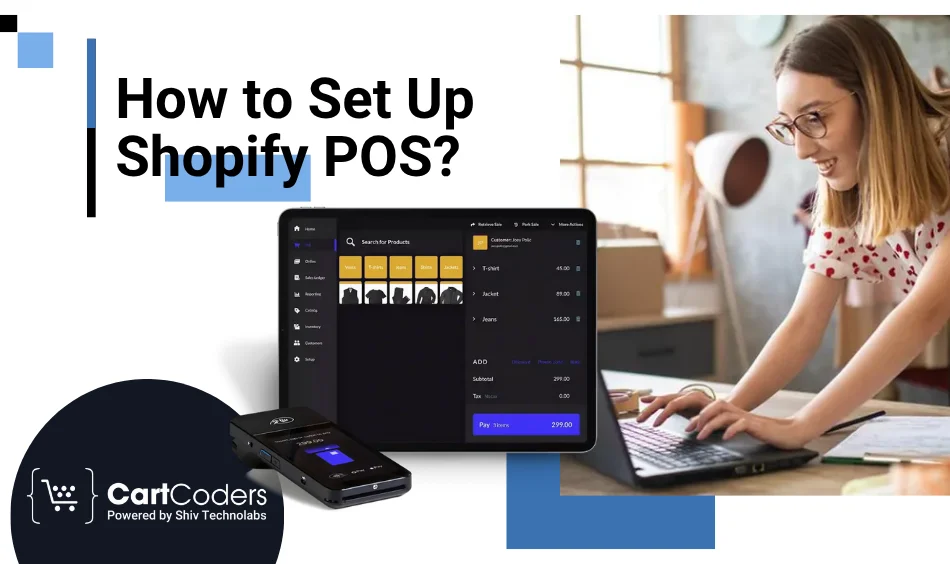
How to Set Up Shopify POS?
Let’s look at each step of Shopify POS setup in detail:
Step 1: Create a Shopify Account
- Go to Shopify
- Click “Start Free Trial”
- Add your store name and details
- Choose a plan that fits your store size
For small businesses, the Basic plan usually works fine.
Step 2: Download the Shopify POS App
- Open the App Store or Google Play
- Search for “Shopify POS”
- Download and install the app
- Log in using your Shopify store login
Step 3: Add Your Retail Store Location
- From your Shopify admin, go to Settings > Locations
- Click “Add Location”
- Enter the name and address of your store
- This helps you manage inventory per store
Step 4: Set Up Your Products
- In the Shopify dashboard, go to Products
- Add product name, price, SKU, and image
- Choose which location the product is stocked at
- You can import in bulk using a CSV file if needed
Retail stores with fewer than 50 products can easily do this manually.
Step 5: Connect POS Hardware
You can buy POS hardware from Shopify or a trusted partner. Connect:
- Barcode Scanner: For fast checkout
- Receipt Printer: To print bills
- Card Reader: For credit/debit payments
- Cash Drawer: For cash transactions
Go to Settings > Hardware in the POS app and connect each item.
Step 6: Customize Payment Options
- From the POS app, go to Settings > Payments
- Enable card, cash, and custom payments
- You can also accept gift cards or store credit
- Add tax rules based on your store location
Almost 70% of U.S. shoppers prefer card or mobile payments, so set up multiple options.
Step 7: Add Staff Accounts
- In Shopify admin, go to Settings > Users and Permissions
- Add staff members who will use the POS
- Set their roles and permissions
- This helps you track sales per employee
If you run a small team, this keeps your system clean and organised.
Step 8: Test Your POS Setup
Before going live:
- Make a test order
- Check if the receipt prints correctly
- Scan a product to see if it shows the right price
- Try different payment methods
This step avoids problems when real customers walk in.
Retail + Shopify POS? We’ve Got You
Get real-time syncing between your physical store and Shopify setup.
- Turn on your POS app at your retail store
- Add customers to the cart during checkout
- Accept payment and complete the sale
- Send a receipt via email or print
Now your Shopify POS for small businesses is ready to use!
Bonus Tips To Run Your POS Smoothly
Here are some extra tips to run your POS smoothly:
- Sync online and offline inventory often
- Use customer profiles to send special offers
- Check daily sales reports for insights
- Use barcode labels to speed up billing
- Train your staff on using the POS system
Over time, you’ll save time and make better business decisions.
Do You Need Help? Use Shopify Integration Services
If this setup feels confusing, you can hire a Shopify integration company. They help:
- Set up Shopify POS for retail stores
- Customize features based on your needs
- Train your staff
- Solve technical issues
This is useful if you’re too busy or unsure about tech stuff.
Final Thoughts
Small and medium-sized retailers can significantly benefit from Shopify POS. Integrating it is very simple, takes little time, and works properly with your store. As soon as you set it up, running your retail business becomes much easier.
It’s time to raise your retail store’s performance with the required tools and solutions. Having Difficulties Setting Up? Trust CartCoders. CartCoders is a well-known Shopify integration company that assists businesses with setting up Shopify POS.
CartCoders is here to assist, regardless of how many stores you have. We can manage every step of Shopify integration, offer staff training, and customize the platform. Our team also simplifies the Shopify POS setup process and prepares it for use.


