
Manually loading products to a Shopify store could be time-consuming, especially when dealing with huge stores. Nonetheless, Shopify provides an alternative to accelerate the process. It is possible to add products in bulk through Excel or CSV files. Such an approach will save you hours of work and mistakes.
Here, we are going to discuss the step-by-step process of importing products into Shopify using Excel or CSV. You will also understand how to correct common mistakes, what to place in your product data file, and how to utilize a Shopify product import service to upload your products in the smoothest and safest way.


So, let’s explain the process of handling large product uploads in a simple and easy-to-understand manner.
Why Use Excel or CSV to Upload Products?
Regardless of migrating to the platform or adding one hundred new SKUs, a CSV file will make your work quicker and simpler. Shopify enables you to add thousands of products in few minutes through a standard CSV template.
These are the best reasons why merchants prefer to utilize this mode:
- Upload or update up to 50,000 products in one go
- Save time with bulk editing
- Avoid manual entry errors
- Migrate product data from any system using Excel
- Use Shopify’s built-in import tools or third-party apps
When your products number over 10-20, it is recommended that you avoid manual uploads and instead use the Shopify CSV import directly.
What Is a Shopify Product CSV File?
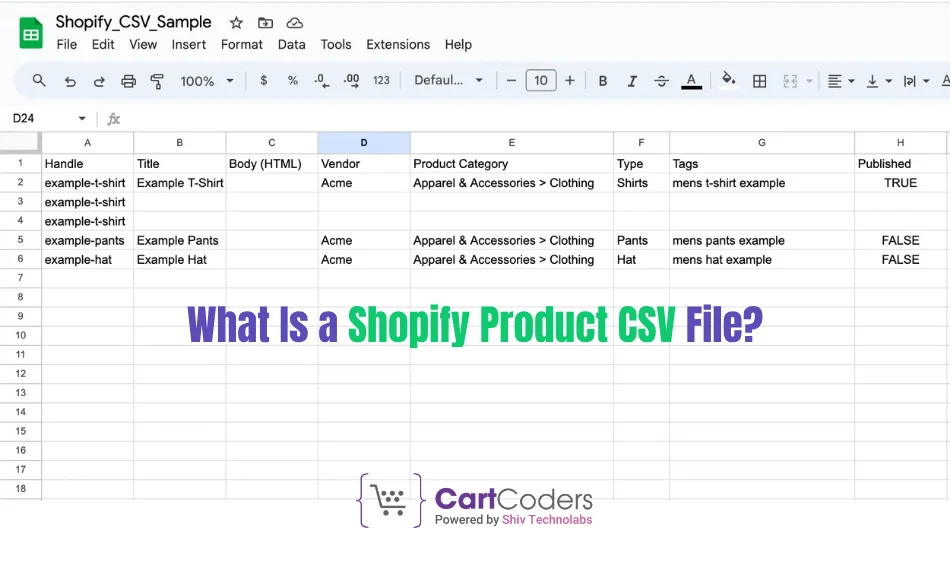
CSV (Comma Separated Values) is a basic format in which product information is saved such as title, price, images, inventory, and categories among others. Shopify relies on a particular structure of CSV files to be able to read it and structure product data appropriately.
Each row in the file is a product or a product variant. Columns include details like:
- Handle (unique product ID)
- Title
- Body (Description)
- Vendor
- Type
- Tags
- Price
- SKU
- Image URLs
- Inventory
You can either download Shopify’s sample CSV template or export your existing product data to see the format.
Steps to Bulk Upload Products to Shopify from Excel or CSV
Here are simple steps to bulk upload products to Shopify. You can do it yourself or hire a professional service to do it for you.
Step 1: Prepare Your Product Data in Excel
Get started by making a list of your product on MS Excel or Google sheet. Include all necessary details in columns.
Each row should be a product or a variant.
Make sure to include:
- Product Name
- Unique Handle
- Price
- Inventory
- Image Links (URLs, Not Uploaded Files)
- Sku Codes
- Categories Or Tags
When you are done with your sheet, you can save in a csv file.
Note: When saving, save in UTF-8 format into CSV. It is the only encoding that is accepted by Shopify.
Step 2: Use Shopify’s Sample Template
And when you are not actually sure of the structure, you have to go to Shopify Admin > Products > Export. This provides you with a sample file.
Check the format of your file against the format of Shopify and ensure that the columns either as required. This guarantees the smooth flow of Shopify CSV importation.
Step 3: Import the CSV File into Shopify
- Go to Shopify Admin > Products
- Click Import
- Upload your CSV file
- Check the preview
- Click Import Products
Shopify reads the file and starts adding products. If there are any errors in the file, Shopify will show them before import.
For large stores, this process can take several minutes.
Step 4: Check Your Store
After the upload, go through your product pages. Check for:
- Correct titles and prices
- Right image placements
- Working product variants
- Active inventory numbers
Fix any missing data by re-importing an updated CSV file.
Common Errors During Shopify CSV Import

Even if your file looks fine, you may face some issues. Here are common errors during Shopify product upload:
- Wrong headers – Shopify won’t recognize the column
- Broken image URLs – The image won’t show on the product page
- Duplicate handles – These must be unique
- Missing required fields – Title, handle, and price are must-have fields
- Incorrect format for variants – Variants need to be in the same row with proper data
To avoid these, use Shopify’s exact format and test with 2–3 products before doing a full import.
How Can a Shopify Product Import Service Help?
If your store has complex products or extensive catalogs, a DIY approach may cause errors or delays. Many merchants hire experts for Shopify data migration services or import support.
Here’s how professional services make things easier:
- Clean and format your product data
- Map fields from Excel to Shopify’s structure
- Handle images and variant relationships
- Import products to Shopify without duplicates or errors
- Assist with store launch and product testing
If you’re moving from WooCommerce, Magento, or another platform, a Shopify expert can migrate full catalogs using automation. They also offer a full Shopify product import service for new stores and re-platforming needs.
Switch to Shopify with Confidence
Our team handles full migration from WooCommerce, Magento, and more.


Tips for Smooth Shopify Product Upload
To avoid errors or lost data, follow these simple tips:
- Always use Shopify’s official CSV format
- Use real image URLs (hosted on Dropbox or your site)
- Avoid special characters in product names or SKUs
- Test with 5 products before doing bulk upload
- Backup your data before overwriting anything
Shopify CSV File Limits
Shopify has limits on how much data you can import:
- Each CSV can have up to 15MB
- Image files must be hosted online, not in the CSV
- No more than 50,000 rows per file
If your product list is very large, split it into smaller CSV files and upload them one by one. This avoids timeout or file size errors.
Alternatives to Manual CSV Upload
If you prefer to avoid spreadsheets, there are other ways to handle product import:
- Shopify Apps like Matrixify
Tools like Matrixify allow you to manage imports with better control. You can map columns, schedule uploads, and fix errors faster.
- Custom Scripts
Developers can create scripts using Shopify API to automate product uploads.
- Hire Experts
You can alternatively hire a Shopify migration service to manage the process, end to end.
These options are time-saving, particularly when operating big stores with thousands of SKUs.
Final Thoughts
Using a CSV file, you can safely and quickly upload products to Shopify in bulk. This decreases the manual effort, eliminates human errors, and allows you to open your store quicker.
However, one should pay attention to the proper structure, present clean information, and use the required tools. When you are uncertain or your catalog is complicated, collaborate with a team such as CartCoders. We provide product uploading and Shopify data migration services so that every aspect works properly.
Waiting to import your products to Shopify without any hassles?
Let CartCoders help you save time and launch your store faster. Get expert help for all your Shopify data needs.


