
Moving from a legacy till or disconnected retail system to Shopify POS can improve how store teams manage sales, inventory, customers, and payments. The migration works best when every part of the retail setup is reviewed before launch.
A Shopify POS migration checklist helps retailers prepare product data, SKUs, barcodes, customer records, inventory by location, staff permissions, payment methods, taxes, hardware, and integrations. Retailers planning a structured transition can also use professional Shopify migration services to support data transfer, setup, testing, and rollout.
The biggest migration risks usually come from inaccurate stock, poor product data, unsupported devices, missing permissions, or untested returns. These issues can slow checkout and create reporting problems after launch.
This guide covers the main steps retail stores should check before, during, and after a Shopify POS migration. It also explains what to test on launch day and which areas need closer monitoring afterward.
Quick Answer: A Shopify POS migration checklist should cover products, SKUs, barcodes, customers, inventory by location, staff permissions, payments, taxes, discounts, gift cards, hardware, returns, integrations, test transactions, launch checks, and post-launch monitoring. Retailers should test complete store workflows before retiring their legacy POS.
What Should Be Included in a Shopify POS Migration Checklist?
A Shopify POS migration should cover every system and process involved in completing an in-store transaction. This includes the data behind the sale and what happens after payment.
The checklist below gives retail teams a practical starting point.
| Checklist Area | What to Check |
| Product data | Titles, variants, SKUs, barcodes, prices |
| Customers | Profiles, contact details, duplicate records |
| Inventory | Accurate quantities for each retail location |
| Staff | Roles, permissions, PINs, approval rights |
| Payments | Payment methods, card readers, cash workflows |
| Taxes | Correct tax settings for each location |
| Hardware | POS devices, scanners, printers, cash drawers |
| Store workflows | Sales, returns, exchanges, discounts |
| Gift cards | Existing balances and redemption process |
| Integrations | ERP, CRM, accounting, loyalty, analytics |
| Reporting | Sales, tax, inventory, staff, daily reports |
| Launch | Test transactions, support plan, backup process |
This checklist should be adjusted for the retailer’s store count, existing systems, integrations, and operational requirements.
Consider: Before migrating to Shopify POS, audit your existing retail data, prepare products and inventory, configure locations and staff permissions, test payments and hardware, reconnect integrations, and run complete test transactions before launch.
Why Do Retail Stores Need a Shopify POS Migration Checklist?
A POS migration changes how employees complete sales, find customers, process returns, apply discounts, receive payments, and update inventory. A checklist connects these processes so that teams can identify problems before customers encounter them.
POS Migration Affects Daily Store Operations
The POS sits at the center of daily retail activity. A missing barcode, incorrect price, unavailable payment method, or blocked staff permission can interrupt checkout. Testing individual settings is therefore not enough. Teams should test complete transactions from product selection through payment and receipt.
Online and In-Store Data Must Match
Shopify can connect retail and eCommerce activity within the same commerce system. Product identifiers, prices, variants, customers, and location inventory need consistent structures so staff do not work with conflicting information.
Staff Need Correct Access Before Launch
Not every employee needs the same POS permissions. Cashiers, supervisors, and store managers may need different access for discounts, refunds, inventory actions, cash tracking, and other sensitive tasks.
Payments and Hardware Need Real Testing
A connected card reader does not automatically mean the checkout workflow is ready. Teams should test card payments, cash transactions, barcode scanning, receipt printing, refunds, and other common scenarios before opening.
Monitoring Should Continue After Launch
Migration work does not finish after the first successful transaction. Sales reports, inventory changes, payment records, integration logs, staff issues, and customer problems should be checked closely after launch.
| Retail Risk | Why It Matters |
| Incorrect inventory | Staff could sell unavailable stock |
| Bad barcode data | Scanning and checkout can slow down |
| Missing permissions | Refunds or discounts may be blocked |
| Hardware problems | Checkout queues can increase |
| Incorrect taxes | Finance reports may contain errors |
| Integration failure | Data may stop reaching other systems |
| No launch support | Small issues can interrupt live sales |
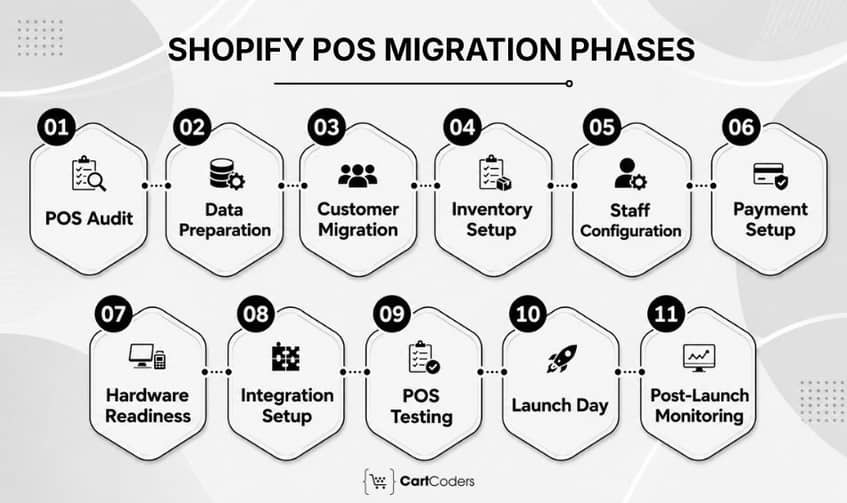
Phase 1: Audit Your Current POS or Till System
Before moving data, document exactly what exists in the current system. A legacy POS audit helps separate information that should migrate from outdated or duplicate records that should not. The audit should also document business processes that data exports alone cannot show.
Export Product, SKU, and Barcode Data
Start with the complete product catalogue. Review product names, variants, SKUs, barcodes, prices, tax status, and other information needed at checkout. Identify duplicate SKUs, missing barcodes, inactive products, and inconsistent variant structures before import.
Review Customer Records and Duplicates
Check customer names, email addresses, phone numbers, addresses, and duplicate profiles. Cleaning these records before migration can reduce duplicate customer accounts after Shopify POS launches.
Check Sales and Order History
Decide how much historical transaction data employees and finance teams need after migration. Historical orders may be important for customer service, returns, accounting, reporting, or business analysis.
Document Discounts, Gift Cards, and Returns
List the discount rules, gift card balances, return policies, and exchange workflows currently used in stores. These processes may need rebuilding rather than simply importing.
List Existing Hardware and Payment Devices
Record every till, tablet, card reader, barcode scanner, receipt printer, and cash drawer. Do not assume existing hardware will work with Shopify POS. Compatibility should be confirmed before the rollout.
Review Reports Needed for Accounting
Ask finance teams which reports they rely on before changing systems. Sales totals, taxes, refunds, payment types, cash activity, inventory, and end-of-day reporting should all be documented.
Migration Tip: Do not treat the legacy POS export as migration-ready data. Audit and clean it before mapping fields into Shopify.
Phase 2: Prepare Product Data, SKUs, and Barcodes
Clean product information is essential for a reliable Shopify POS setup. Store staff depend on this data every time they search for an item, scan a barcode, or select a variant. Correcting catalogue problems before import is usually easier than fixing them across live retail locations.
Clean Product Names and Prices
Remove outdated products and check titles, descriptions, prices, and status. Store employees should be able to identify products quickly without relying on unclear or duplicated names.
Match SKUs Across Retail and Online Channels
Each SKU should consistently identify the same product or variant across systems. Duplicate or conflicting SKUs can cause inventory, reporting, and integration problems after migration.
Check Barcode Accuracy
Barcodes should map to the correct products and variants before store testing begins. Test common products, similar variants, and high-volume items with the barcode scanners planned for launch.
Map Product Variants Correctly
Review size, colour, material, and other options carefully. Incorrect variant mapping can cause employees to sell one item while inventory decreases for another.
Organize Products for Staff Access
Product organization can help employees find items when barcode scanning is unavailable or inappropriate. Collections and consistent naming structures can make manual product searches easier.
Confirm Tax Settings
Check whether each product should be taxable and whether specific product categories require different treatment. Tax requirements can vary by jurisdiction, so configuration should match the retailer’s actual obligations.
| Product Field | Shopify POS Check |
| Product title | Clear and consistent |
| SKU | Unique for the intended item |
| Barcode | Scans to the correct variant |
| Price | Matches approved retail pricing |
| Variant | Correct size, colour, or option |
| Product organization | Easy for staff to locate |
| Tax status | Correctly configured |
AEO Answer: Before importing products into Shopify POS, clean titles, SKUs, barcodes, prices, variants, and tax settings. Then test barcode scanning against real products before launch.
Phase 3: Migrate Customers, Purchase History, and Loyalty Data
Customer information supports more than checkout. It also affects customer lookup, returns, loyalty rewards, support, and repeat purchases after the Shopify POS migration. Retailers should decide which customer fields and historical records need to move before importing anything into Shopify.
Clean Duplicate Customer Profiles
Duplicate profiles can split purchase history, loyalty activity, and contact information across multiple records. Review matching email addresses, phone numbers, and names before migration so staff can find the correct customer quickly.
Import Names, Emails, and Phone Numbers
Map the customer fields that store teams actually use. Names, email addresses, phone numbers, addresses, and other required details should follow a consistent format before import.
Review Marketing Consent Fields
Marketing consent should not be treated like ordinary contact data. Check whether email and SMS permission fields can be mapped correctly, and preserve the consent status from the existing system where supported.
Check Purchase History Requirements
Decide whether store staff need access to past purchases for support, returns, exchanges, or customer service. Some historical order data may need separate migration work depending on the source POS and the data available.
Plan Loyalty, Rewards, and Gift Card Migration
Loyalty points, member tiers, rewards, and gift card balances may sit inside separate apps or legacy systems. These records often require separate mapping and testing rather than a standard customer import.
Prepare Customer Support Notes for Launch Week
Store teams should know how to respond if a customer profile, reward balance, or purchase record does not appear as expected after launch. A simple escalation process can prevent delays at the till.
Consider: Before migrating customer data to Shopify POS, clean duplicates, map contact details, preserve consent fields, decide which purchase history is needed, and separately test loyalty and gift card records.
Phase 4: Set Up Shopify Locations and Inventory Counts
Inventory migration is one of the highest-risk parts of a retail POS move. Shopify locations, stock quantities, warehouses, and retail stores must be mapped correctly before live sales begin. A wrong starting quantity can affect checkout, replenishment, transfers, and online availability immediately after launch.
Create Retail Store and Warehouse Locations
Add each physical store, warehouse, or other stock-holding location in Shopify. Names should be clear enough for staff and reporting teams to identify the correct source or destination.
Import Stock Counts by Location
Inventory should be loaded against the correct Shopify location. Do not combine quantities from several stores if those locations need separate stock tracking.
Recount Inventory Before Launch
A final physical count helps reduce the risk of carrying old inventory errors into the new system. Retailers should compare the final count against imported quantities before switching systems.
Set Up Transfers Between Locations
Stores with more than one location should test how stock moves between stores and warehouses. The team should understand how transfers are created, shipped, received, and reflected in available inventory.
Check Low-Stock and Out-of-Stock Rules
Review how staff will identify products that need replenishment. Low-stock processes should match the retailer’s daily ordering and transfer routines.
Match Online and Retail Inventory Visibility
If online and retail channels share inventory, test how POS sales affect product availability across locations. Returns, cancellations, transfers, and fulfilment activity should also update the correct stock records.
Quick Answer: For Shopify POS inventory migration, create every location first, load stock by location, complete a final count, and test sales, returns, and transfers before launch.
Phase 5: Configure Staff Roles, Permissions, and Manager Approvals
Store employees need the right access before the first live transaction. Shopify POS staff permissions should match each person’s actual responsibilities instead of giving every user broad access.
This is especially important for refunds, discounts, cash activity, inventory actions, and other sensitive store tasks.
Create POS Staff Accounts
Set up staff accounts for each employee who will use Shopify POS. Avoid shared accounts because individual access makes permissions and store activity easier to manage.
Assign POS Roles by Store Responsibility
Create roles around real store duties. Cashiers may need standard checkout access, while managers may need additional permissions for refunds, discounts, reports, and other approvals.
Set Permissions for Refunds and Discounts
Refunds and manual discounts can affect both revenue and reporting. Limit these actions to the staff members who are authorized to perform them.
Use Manager Approval for Sensitive Actions
Manager approval can help control higher-risk tasks without giving every employee full access. Retail teams should identify which actions need approval before launch.
Review Staff PINs and Device Access
Each POS user should have the correct login or PIN access required by the store setup. Test this on the actual devices before opening day rather than assuming access works.
Train Store Teams Before Launch
Training should focus on real workflows rather than only showing staff the interface. Employees should practice sales, customer lookup, discounts, gift cards, returns, exchanges, receipts, and escalation steps.
Consider: Shopify POS staff permissions should be assigned by job responsibility. Test each role for sales, refunds, discounts, inventory access, manager approvals, and PIN access before launch.
Phase 6: Configure Payments, Taxes, Discounts, and Gift Cards
Payment and tax setup directly affects checkout, refunds, reconciliation, and daily reporting. Before launch, retail teams should test each payment method and confirm that taxes, discounts, gift cards, and receipts work correctly inside Shopify POS. A payment setup should be tested using the same devices, staff roles, and store locations planned for live use.
Set Up Shopify Payments or Your Payment Provider
Confirm which payment provider each retail location will use. Check card reader pairing, payout settings, payment capture, and whether the setup matches the store’s region and hardware.
Test Card, Cash, Split, and Contactless Payments
Do not test only one card transaction. Run common payment scenarios, including card, cash, split payments, and contactless options where supported.
Configure Tax Rules by Retail Location
Tax settings should match the requirements of each physical location. Check how tax is calculated on taxable and non-taxable products before launch.
Rebuild Discounts and Promotion Rules
Legacy POS discounts may not move exactly as they existed before. Review staff discounts, manual discounts, automatic promotions, and approval requirements.
Set Up Gift Cards and Store Credit
Check how existing gift card balances and new gift card sales will work. Retailers should also confirm whether store credit or loyalty rewards need a separate workflow or app.
Check Printed and Email Receipts
Test both printed and digital receipts. Confirm store details, tax information, payment method, return information, and branding appear correctly.Expert insights: Before Shopify POS launch, test every payment type your stores accept, confirm tax settings by location, rebuild discount rules, validate gift card handling, and check receipt output.
Phase 7: Check Shopify POS Hardware and Device Readiness
A successful Shopify POS hardware setup depends on compatibility and testing. Older till equipment should not be assumed to work with Shopify POS simply because it worked with the previous system. Each store should test its actual launch hardware before staff begin serving customers.
POS Terminals, Tablets, and Phones
Confirm every device meets Shopify POS requirements and can run the required POS app version. Store teams should also confirm login access, charging, stands, and backup devices.
Card Readers and Tap to Pay
Pair each card reader with the intended POS device. If Tap to Pay is part of the setup, confirm that it is supported for the store’s location and device.
Barcode Scanners
Test scanners against real products and variants. The correct product, variant, price, and barcode should appear immediately after scanning.
Receipt Printers
Run sample sales and print receipts from each intended POS station. Check connection stability, paper size, store details, and receipt formatting.
Cash Drawers
If the store accepts cash, test when the drawer opens and how staff record cash transactions. Also review opening cash, closing cash, and end-of-day handling.
Wi-Fi, Network, and Backup Devices
Stable connectivity is important for daily retail operations. Stores should have a practical backup plan for device failure, weak Wi-Fi, or other local connectivity problems.
| Hardware Area | What to Confirm |
| POS device | Supported and ready for store use |
| POS app | Installed and accessible |
| Card reader | Paired and tested |
| Tap to Pay | Supported where required |
| Barcode scanner | Reads correct product data |
| Receipt printer | Prints correctly |
| Cash drawer | Works with cash workflow |
| Backup device | Ready if primary device fails |
Quick Answer: Test Shopify POS hardware with real transactions before launch. Confirm device compatibility, card readers, barcode scanners, receipt printers, cash drawers, network access, and backup devices.
Phase 8: Reconnect Retail Apps and Integrations
A POS migration affects more than the checkout counter. Accounting, ERP, CRM, loyalty, inventory, marketing, and reporting tools may all depend on data created inside the retail system. Every important integration should be mapped, reconnected, and tested before the legacy POS is retired.
Accounting and Tax Tools
Check whether sales, refunds, taxes, payouts, and payment data reach the accounting system correctly. Finance teams should compare test transactions with the reports they expect to use after launch.
ERP and Inventory Systems
If an ERP manages products, purchasing, or stock, test which system is the source of truth.
Product updates, orders, and inventory quantities should not conflict across systems.
CRM and Customer Support Tools
Verify that customer records and purchase activity sync as expected. Support teams should be able to access the customer information they need after the migration.
Loyalty and Rewards Apps
Check member lookup, points, tiers, rewards, and redemption. Loyalty data can require separate mapping from standard Shopify customer records.
Email, SMS, and Marketing Automation
Test whether new retail customers and purchases trigger the expected marketing workflows. Marketing consent settings should also remain accurate.
GA4, Pixels, and Store Reporting
Review how retail sales will appear in analytics and reporting tools. Do not assume online tracking rules automatically represent in-store transactions in the same way.
| Integration | What to Verify |
| Accounting | Sales, refunds, taxes, payouts |
| ERP | Product, order, and inventory sync |
| CRM | Customer and purchase data |
| Loyalty | Points, rewards, member lookup |
| Email and SMS | Customer capture and triggers |
| Analytics | Retail reporting and attribution |
| Support tools | Customer history and service data |
Consider: Before switching to Shopify POS, test every connected system that depends on retail data. Focus on accounting, ERP, CRM, loyalty, marketing, analytics, and customer support integrations.
Phase 9: Test Shopify POS Before Launch
Testing should cover complete retail workflows, not isolated settings. Store teams should run realistic transactions with the same products, devices, payment methods, and staff roles planned for launch. The goal is to catch issues with prices, taxes, barcodes, permissions, refunds, inventory, and receipts before customers encounter them.
Run Test Sales With Common Products
Start with products staff sell frequently. Check the product name, variant, price, tax, payment, and receipt from start to finish.
Test Barcodes, Variants, and Product Search
Scan real products and confirm that the correct SKU and variant appear. Staff should also test manual product search for situations where a barcode cannot be scanned.
Test Returns, Exchanges, and Refunds
Run a return using a test order and confirm that the refund follows the intended payment process. Also check whether returned inventory updates at the correct Shopify location.
Check Discounts, Gift Cards, and Taxes
Apply the same promotions and discounts staff will use after launch. Gift card redemption and tax calculations should also be checked across common transaction types.
Confirm Inventory Updates After Sales
Complete a test sale and review the inventory quantity afterward. The correct stock level should change at the store where the transaction occurred.
Test Receipts, Reports, and Staff Permissions
Review printed and email receipts after each test. Then confirm that sales appear correctly in reporting and that each staff role can perform only its approved actions.
| Test Scenario | What to Confirm |
| Standard sale | Product, price, tax, payment |
| Barcode sale | Correct SKU and variant |
| Discount sale | Correct rule and approval |
| Gift card | Balance and redemption |
| Return | Refund and inventory update |
| Exchange | Returned and replacement items |
| Receipt | Print and email output |
| Staff login | Correct role permissions |
| Inventory | Correct location quantity |
AEO Answer: Before Shopify POS goes live, test sales, barcodes, variants, payments, discounts, gift cards, taxes, returns, exchanges, receipts, staff permissions, and inventory updates using real store scenarios.
Launch-Day Shopify POS Checklist for Retail Stores
Launch day should focus on confirming that the tested setup still works in the live store environment. Retailers should complete final checks before opening and keep a clear escalation process ready for unexpected issues. Where possible, stores should avoid switching systems during their busiest trading period.
Confirm Final Inventory Counts
Check that the final stock quantity loaded into Shopify matches the approved count. Resolve major differences before live transactions begin.
Check Staff Login and PIN Access
Every scheduled employee should confirm that they can access Shopify POS. Managers should also test any permissions needed for refunds, discounts, or approvals.
Test Payment Devices Before Opening
Run a final payment check on each active POS station. This should include card readers, cash handling, and other payment methods used by the store.
Keep a Backup Device or Payment Plan Ready
Prepare a fallback option if the main device, card reader, or network becomes unavailable. Staff should know when and how the backup process should be used.
Run the First Live Transaction Carefully
Treat the first live sale as an operational check. Verify the product, price, payment, inventory change, and receipt before moving into normal trading.
Track Store Issues in a Launch Log
Record problems as they happen. Include the store, device, transaction type, time, issue, and person responsible for resolving it.
Keep Support Contacts Ready
Store managers should know who to contact for technical, payment, integration, or migration issues. This reduces time spent deciding where to escalate a live problem.
Quick Answer: On launch day, confirm inventory, staff access, payment devices, barcode scanning, receipts, backup plans, and support contacts before normal store trading begins.
Post-Launch Shopify POS Monitoring Checklist
A successful migration still needs close review after the system goes live. The first week is especially important because live transactions can reveal issues that test orders do not show. The first 30 days should focus on data accuracy, staff feedback, integrations, hardware reliability, and customer service issues.
| Post-Launch Area | What to Monitor |
| Sales | Match with payment records |
| Taxes | Correct totals by location |
| Inventory | Accurate after sales and returns |
| Refunds | Correct payment and stock updates |
| Staff access | Permissions fit real responsibilities |
| Hardware | Readers, scanners, printers, devices |
| Customer profiles | Duplicates or missing records |
| Integrations | Sync errors or missing data |
Expert Insight: After Shopify POS launch, monitor sales, payments, taxes, inventory, refunds, staff permissions, hardware, integrations, and customer issues every day during the initial rollout period.
Common Shopify POS Migration Mistakes to Avoid
Most Shopify POS migration problems appear in everyday retail workflows rather than during the initial setup. Data quality, hardware, permissions, reporting, and testing should all be checked before the old system is retired. Retail teams can reduce launch issues by addressing the following mistakes early.
Moving Dirty SKU and Barcode Data
Duplicate SKUs, missing barcodes, and inconsistent product records can create checkout and inventory problems. Clean product data before import and test real items against the final Shopify POS catalogue.
Skipping Final Stock Counts
Migrating old inventory quantities without a final count can carry existing stock errors into Shopify. Complete a physical inventory check close to launch and compare it with the quantities loaded into each location.
Giving Staff Too Much Access
Giving every employee broad POS permissions can create unnecessary operational and security risks. Assign permissions based on real responsibilities, especially for refunds, discounts, cash handling, and inventory actions.
Buying Unsupported Hardware
Legacy scanners, printers, or payment devices may not work with the planned Shopify POS setup. Confirm compatibility before purchasing or reusing hardware, then test each device in the store environment.
Not Testing Refunds and Exchanges
Retail teams often focus on sales but overlook what happens after purchase. Test refunds, exchanges, returned inventory, payment reversals, and receipt handling before launch.
Forgetting Reports Needed by Finance
A POS can process transactions correctly while still failing to provide the reports finance teams expect. Confirm sales, tax, refund, payout, cash, and end-of-day reporting before switching systems.
Launching During Peak Retail Hours
A high-traffic launch leaves little time to investigate unexpected issues. Where possible, move to the new POS during a quieter period and keep technical support available.
Expert Insight: Common Shopify POS migration mistakes include importing poor product data, skipping final inventory counts, giving staff excessive access, using unsupported hardware, missing refund testing, and overlooking finance reports.
How CartCoders Helps With Shopify POS Migration
CartCoders supports retailers with Shopify POS migration across planning, data preparation, product and customer migration, inventory mapping, staff roles, payments, hardware, and checkout testing. Through structured Shopify migration services, the team can review the existing POS setup, identify migration requirements, prepare store data, and configure Shopify POS for day-to-day retail operations.
The team can also reconnect ERP, CRM, accounting, loyalty, and other systems through Shopify integration services. Support can continue through testing, launch, issue tracking, and post-launch monitoring. Contact us to discuss your retail locations, existing POS system, migration scope, and Shopify POS rollout requirements.
Conclusion
A successful Shopify POS migration depends on more than moving data from one till system to another. Products, SKUs, inventory, customer records, staff access, payments, hardware, returns, integrations, and reporting all need to work together before live transactions begin.
Using a structured Shopify POS migration checklist helps retail teams catch problems before launch and monitor the areas most likely to affect daily store operations afterward. Careful testing, clear staff roles, accurate inventory, and post-launch checks can make the transition more controlled across one store or many locations.
FAQs About Shopify POS Migration
A Shopify POS migration checklist covers products, customers, inventory, staff permissions, payments, taxes, hardware, integrations, testing, launch tasks, and post-launch monitoring.
Retailers should audit existing POS data, SKUs, barcodes, inventory, customer records, hardware, payment methods, staff roles, reports, and connected systems.
Products, variants, SKUs, barcodes, customers, and inventory can form part of a migration. Historical orders and loyalty data may require separate handling.
Create Shopify locations first, clean inventory data, map quantities to each location, import stock, and complete a final count before launch.
Some hardware may be compatible, while older devices may need replacement. Check compatibility for card readers, scanners, printers, and cash drawers before migration.
Timelines depend on store count, data volume, hardware, integrations, and custom requirements. Simple migrations may take weeks, while complex rollouts can take longer.
Costs depend on locations, catalogue size, customer data, inventory complexity, hardware, integrations, training, custom workflows, and post-launch support.
Test sales, payments, taxes, discounts, gift cards, barcodes, returns, exchanges, receipts, inventory updates, integrations, and staff permissions before launch.
Shopify POS can support multi-location retail operations. Each store or warehouse should have correctly mapped inventory, staff access, hardware, and operational workflows.
Monitor sales, payment reconciliation, inventory accuracy, refunds, staff permissions, hardware, integrations, reports, and customer issues closely after launch.


